
Guide for teachers
Running a class on HomeopathyWorld
Your students practise case-taking with a simulated patient, choose rubrics from Kent’s Repertory and prescribe. You set the cases, follow the batch and sign off the scores. It is free, there is nothing to install, and students can use a phone.
For teachers
Create your account
Go to homeopathyworld.in and choose Start free. Under “I am a”, pick Professor / HOD or Homeopathic Practitioner. You are signed in as soon as you create it.
Start a class
Open Cases and choose Teach a class (or go to homeopathyworld.in/cases/classes). Give the class a name — for example “BHMS 2nd year, batch A” — and your college, then choose Start the class.
Make one class for each batch. You become its teacher, and we email you its link.
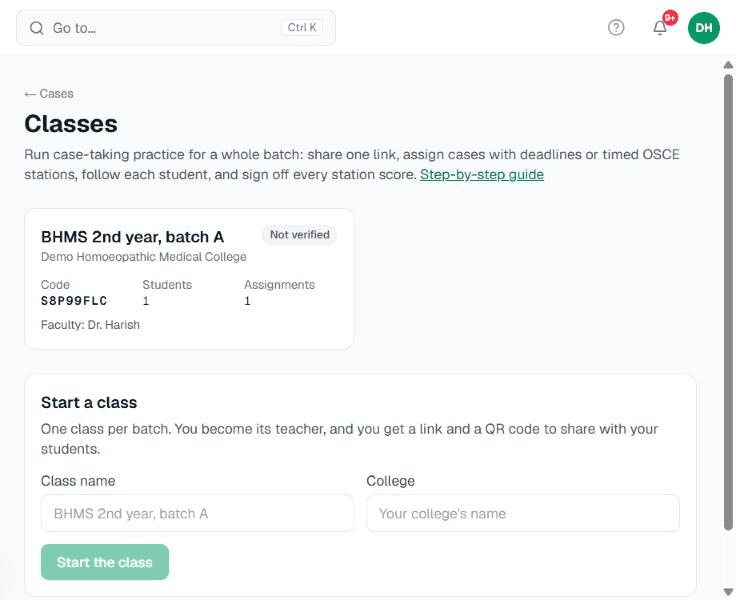
Starting a class takes a name and your college. Invite your students
Your class page shows a link, a QR code and an eight-character class code. Use whichever suits you:
- Send the link on your class WhatsApp group — there is a button for it.
- Show the QR code on the projector; students scan it with their phone camera.
- Print the poster for the notice board.
- Or read out the class code; students type it on their Cases page.
A student who opens the link creates a free account (or signs in), sees what you will be able to see, and joins. Their names appear on your class page as they do.
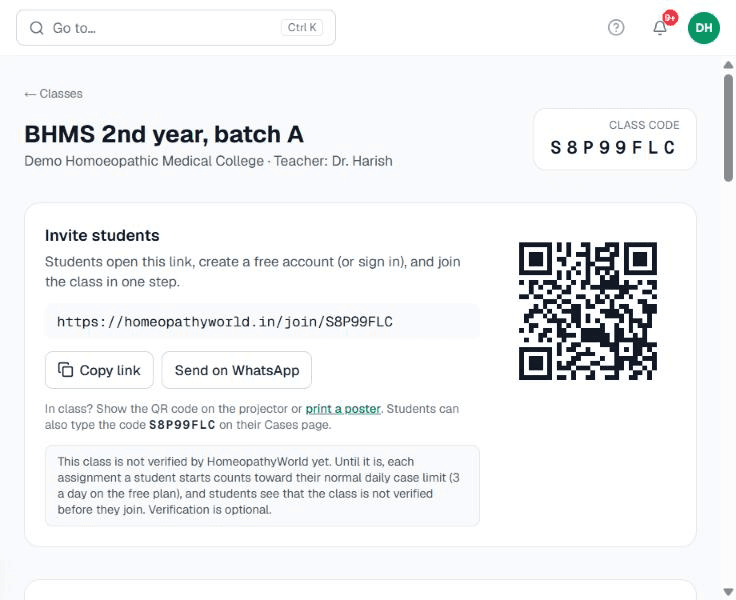
The Invite students panel on your class page. 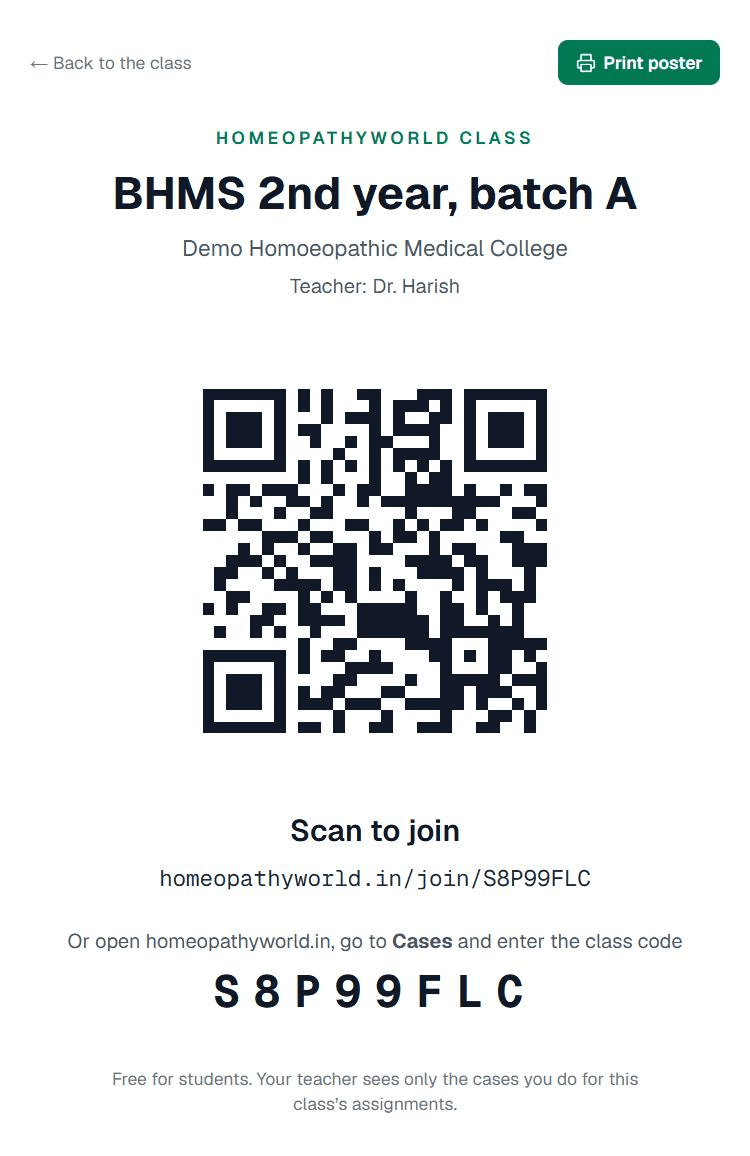
The printable poster. Assign a case
On your class page, under Assign a case, pick a case from the library and choose how it is taken:
- Practice — students take the case at their own pace before the due date.
- OSCE station — one attempt against a clock you set (5 to 120 minutes). The clock runs on our server and cannot be paused, and there are no hints or remedy ranking.
Set when it opens and when it is due, add a note if you like, and save. Students see it on their Cases page straight away.
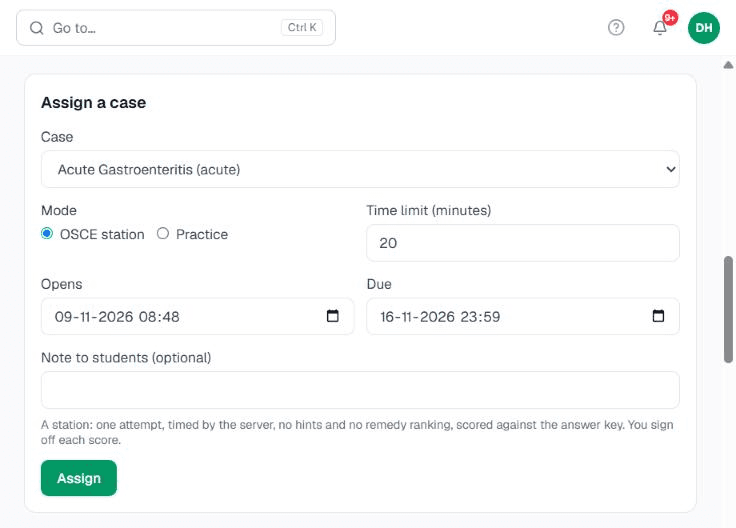
Assigning a case with opening and due dates. Follow the batch and sign off
Each assignment shows every student and where they are: not started, in progress, submitted, signed off. Open a student’s case to see the whole interview, the rubrics they chose, their prescription and reasoning, and the AI’s score.
For an OSCE station, the AI’s score is only advisory until you confirm it or change it — a change needs a short reason. The student is told when you sign off, and sees your score with the feedback.
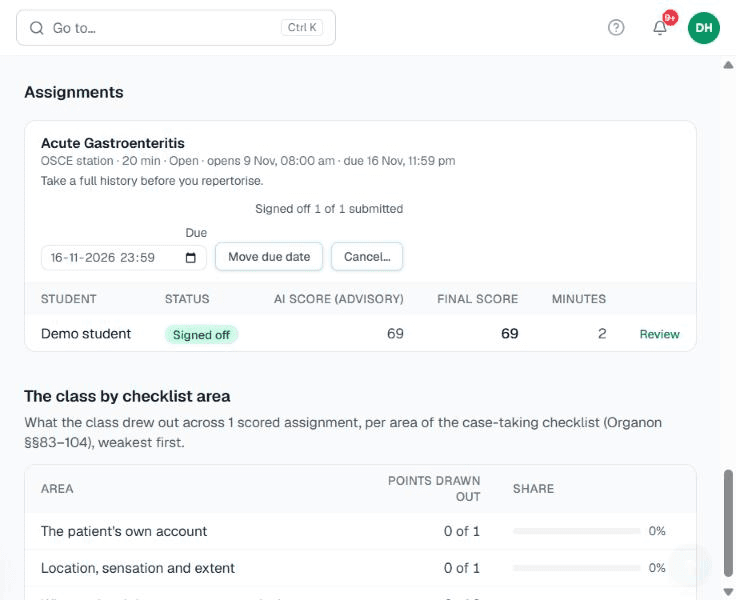
Every student's status for one assignment. 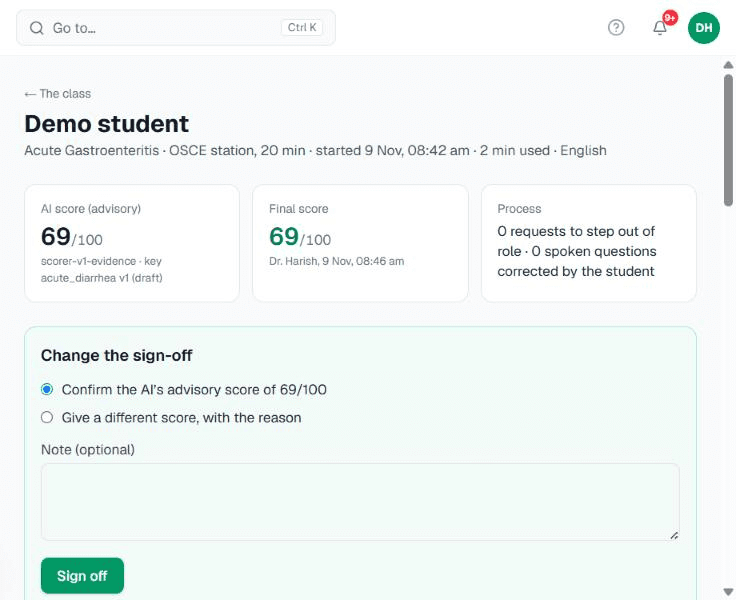
Reviewing one student's case and signing off the score. Add a colleague (optional)
A colleague can teach the class with you. Under Teachers on the class page, copy the Invite a colleague to teach link (or send it on WhatsApp). They open it, sign in or create an account, and choose Teach this class. Send it only to colleagues — anyone with that link can become a teacher.
Every teacher of a class can assign cases and sign off scores. The teacher who started the class can remove other teachers, and any teacher can choose Stop teaching; a class always keeps at least one.
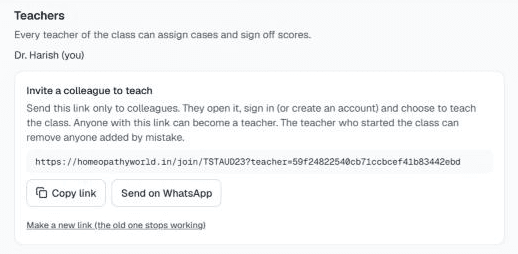
Inviting a colleague to teach the class.
For students
You can share this part with your batch.
Open the class link
Open the link your teacher sent, or scan the QR code. If you don’t have an account, choose Create an account; if you do, Sign in.
Join the class
Once your account is made on the same phone or computer, you come straight back to the class. Read what your teacher will see, then choose Join. (On another device, just open the class link again.)
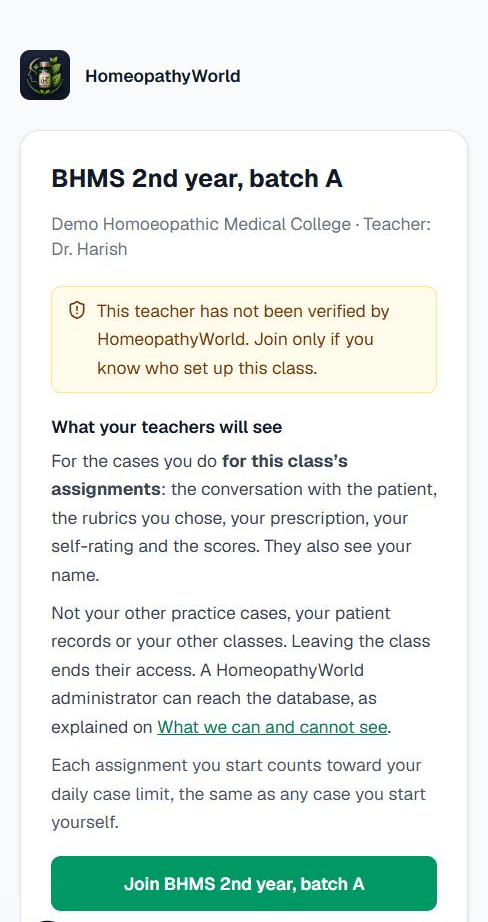
What you see when you open the class link. Take your assigned cases
Your assignments are on your Cases page under Your classes, with their due dates. Choose Start, interview the patient in your own words, pick rubrics, repertorise and prescribe.
An OSCE station is one attempt: the clock starts when you press start and cannot be paused. You can take cases in English, Hindi, Marathi, Tamil, Telugu, Kannada, Bengali, Gujarati, and speak instead of typing.
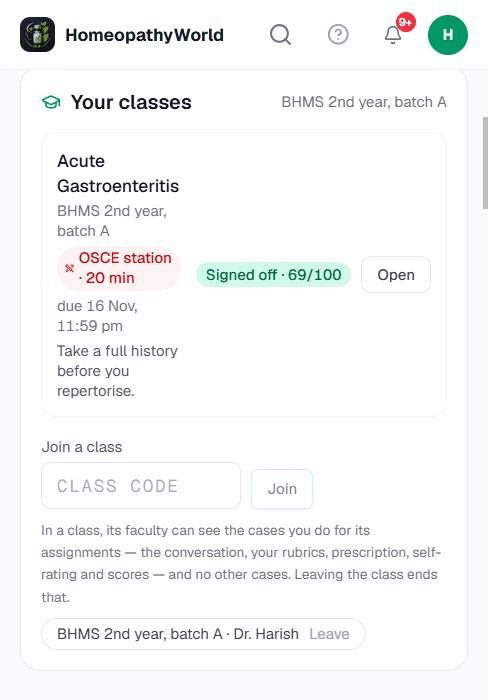
Your classes and assignments on the Cases page.
What you can and cannot see
A teacher sees the cases a student does for that class’s assignments: the conversation, the rubrics, the prescription, the student’s self-rating and the scores. Not their own practice cases, their patient records or their other classes. Students are told this before they join, and leaving the class ends a teacher’s access. We do not claim that nobody else can reach the data — a system administrator can reach the database — What we can and cannot see sets it out in full.
Common questions
- Does it cost anything?
- No. Classes are free for teachers and students.
- How many cases can a student take?
- Every account has a daily limit on new AI cases. Until HomeopathyWorld verifies a class, each assignment a student starts counts toward that limit, like any case they start themselves — usually plenty for coursework. Verification is optional; write to contact@homeopathyworld.in if your class needs it.
- A student joined the wrong class.
- They can leave it from their Cases page and join the right one with its link.
- The wrong person got the teacher invite link.
- The teacher who started the class removes them under Teachers; that also stops every earlier invite link working. To withdraw a link without removing anyone, choose Make a new link.
- The batch has finished.
- Choose Close this class at the bottom of its page. Its link and code stop working; students keep the cases they did.
- I’m stuck.
- Write to contact@homeopathyworld.in. You will hear back from the person who builds HomeopathyWorld.
HomeopathyWorld · homeopathyworld.in/for-colleges/guide · contact@homeopathyworld.in