
Tutorials
Community, your profile and achievements in HomeopathyWorld
By Dr. Harish Kumar · September 12, 2026 · 8 min read
How to post, comment and reply in the community, claim your @handle, and how XP, levels, streaks, the 15 achievements and the leaderboard work.
Homeopathy is learnt case by case, and much of it from colleagues. The community is where HomeopathyWorld members discuss cases, ask questions and share what they have read. Around it sit your public profile, the XP you earn for real work, and a leaderboard. This guide explains each part and how they fit together.
Before you start
- Community and Leaderboard only appear in the sidebar in Community mode. If you can't see them, switch the toggle near the top of the sidebar from Clinic to Community. Clinic mode is covered at the end of this guide.
- Claim a username before you post, so people can recognise you and open your profile. Step 4 shows how.
Step 1: Read the community feed
Open Community from the sidebar. The tabs along the top filter the feed: All, Cases, Questions, Knowledge and News. At the bottom, Load more posts loads older posts.
Each post shows the author, their role, the category, the text and any tags. Under each post:
- the heart likes the post, and clicking it again removes the like
- the speech bubble opens the comments
- the share icon copies a link to the post
Long posts are shortened in the feed. Read full post →, or a click on the title or text, opens the post on its own page.
Step 2: Write a post
Click New post, or click the bar that says Share a case, ask a question, or post knowledge….
- Category: choose Question (the default), Case Discussion, Knowledge or News.
- Title: optional, up to 120 characters. A clear title gets more replies.
- Content: required, 10 to 2,000 characters. A counter shows how many you have used.
- Tags: optional, up to 5. Type a tag and press Enter or a comma. Tags are changed to lowercase, and spaces become hyphens.
- Click Post, or press Ctrl+Enter.
To publish later, click Schedule for later and pick a time under Publish at. The time must be in the future, and the button then changes to Schedule. Clear switches back to posting straight away. Your scheduled posts appear in a Scheduled box above the feed, where you can Publish now, Reschedule or Delete each one.
Tip: before you post a case, remove anything that could identify the patient, such as their name, exact locality, workplace or date of birth. A colleague only needs the age, sex and the symptom picture.
Step 3: Comment, reply and edit
To comment, click the speech bubble on a post or open the post itself. Type in Write a comment…, then press Ctrl+Enter (Cmd+Enter on a Mac) or click the send button.
To answer a particular comment, click Reply under it. Your reply appears indented beneath that comment, which keeps each conversation together. Replies go one level deep, so a reply has no Reply button of its own. To send a reply, press Ctrl+Enter (Cmd+Enter on a Mac).
To edit or delete your own post, open the three-dot menu at the top right of the post.
- Edit lets you change the title and the text. Click Save in the feed, or Save changes on the post's own page. On its own page, an edited post is marked (edited).
- Delete changes to Confirm delete. Click it again to remove the post.
Step 4: Claim your @handle
Your username is your public handle. It appears as @username on your posts and comments and links to your profile.
- Go to Settings → Profile. The Claim your @handle step in the dashboard's Get started checklist takes you to the same place.
- In Username, type the handle you want. It must be 3 to 20 characters long, using only lowercase letters, numbers and underscores.
- Watch the line under the field. It shows Checking availability…, then tells you whether your handle is available, already taken or reserved.
- Click Save changes.
Your profile is then at /u/yourhandle, and that is the address to share.
Step 5: Your profile
To open your profile, click your name at the top of the sidebar. Other members see the same page. It shows your role, location, college, the month you joined and your bio. Below that are three counters (Day streak, Total XP and Cases done), then your achievements and your recent posts. Your email address and mobile number never appear on it.
You also see two things other members don't: an Edit profile button and your plan.
To keep your profile to yourself, go to Settings → Privacy and switch off Show my public profile. Other members then see "This profile is private" instead. Your name still appears on your posts and on the leaderboard.
Step 6: XP, levels and streaks
You earn XP for real activity. The server checks each award, not your browser.
| What you do | XP |
|---|---|
| Complete a case in the simulator after asking at least 3 questions and giving a prescription | 50 |
| Publish a community post straight away (not scheduled) | 10 |
| Receive a like on one of your posts | 2 |
Each case earns XP only once, and your score does not change the amount. Taking the case properly earns the XP. Guessing the right remedy quickly does not earn more.
Case milestones add a one-off bonus. It goes straight into your XP, and the notification bell tells you about it.
| Completed cases | Bonus XP |
|---|---|
| 1st | 200 |
| 10th | 100 |
| 25th | 150 |
| 50th | 200 |
| 100th | 500 |
Levels. Every 100 XP is one level, starting from Level 1. The dashboard shows your level and a progress bar towards the next one.
Streaks. A day counts towards your streak when you open the dashboard or complete a case. Days follow the India calendar. Your streak grows for each day in a row you are active. Miss a day and it starts again at 1. If you were active yesterday, a morning reminder in the bell nudges you to keep it going.
Step 7: The 15 achievements
Achievements are badges on your profile. Earned badges are highlighted. Locked badges are greyed out, and most show your progress, such as 7/10. When you earn one, an Achievement unlocked notice appears in the bell.
| Achievement | What the app asks of you |
|---|---|
| First Prescription | Complete your first case simulation |
| Practitioner in Training | Complete 10 case simulations |
| Repertorizer | Complete 25 case simulations |
| Case Master | Complete 50 case simulations |
| Homeopathic Expert | Complete 100 case simulations |
| XP Collector | Earn 1,000 XP |
| XP Hunter | Earn 5,000 XP |
| XP Legend | Earn 10,000 XP |
| Getting Consistent | Maintain a 3-day learning streak |
| Week Warrior | Maintain a 7-day learning streak |
| Monthly Devotee | Maintain a 30-day learning streak |
| Community Member | Make your first community post |
| Active Contributor | Make 10 community posts |
| High Achiever | Earn 1,000 XP and complete 10 cases |
| Dedicated Learner | Complete 25 cases with a 7-day streak |
Note: Community Member and Active Contributor have unlocked properly since 12 September 2026. If you posted before then, your earlier posts count: the badge appears the next time you post, receive a like or complete a case.
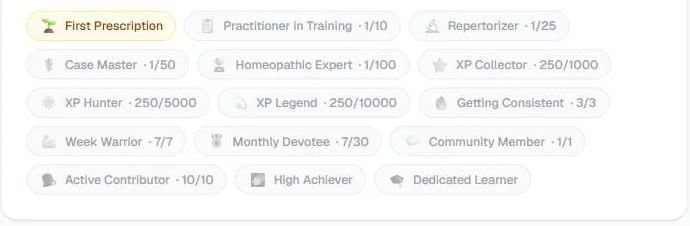
The badges on our own profile, 13 September 2026. First Prescription is earned. Community Member (1/1) and Active Contributor (10/10) have reached their targets from posts made before the fix, so, as the note above says, they turn gold at the next post, like or completed case.
Step 8: The leaderboard
Leaderboard ranks learners by the XP they have earned. It lists the top 10 members with any XP (admin accounts are not included) and shows each person's XP, completed cases and streak. If you are in the top 10, a banner shows Your rank.
Step 9: Bookmarks
When you are reading an aphorism in the Organon, click Bookmark to save it. The button changes to Saved, and clicking it again removes the bookmark. Everything you save is listed on the Bookmarks page in the sidebar, grouped by type with the newest first.
Step 10: Clinic mode
Clinic mode turns the app into a plain clinical workspace. Switch between modes with the Clinic / Community toggle near the top of the sidebar, or under Workspace in Settings.
In Clinic mode:
- Community and Leaderboard disappear from the sidebar.
- XP, level and streak are hidden on the dashboard and in the sidebar.
- The bell hides notifications about achievements, community replies, streaks and unfinished cases. Appointment and follow-up reminders still show.
Nothing is lost. Your XP and streak keep building in the background, and the community and leaderboard pages still open if you go to them directly. Switch back to Community and everything is where you left it.
Common mistakes
- Posting before you claim a handle. Without one, your name isn't linked to a profile.
- Posting details that identify a patient. Keep to age, sex and the symptom picture.
- Expecting XP for a scheduled post. Only posts published straight away earn XP.
- Rushing a case. With fewer than 3 questions, or no prescription, a case earns no XP.
- Thinking Clinic mode resets your progress. It only hides things. It deletes nothing.
Try it now
Open Community and ask the question you have been meaning to ask. Then open your profile to see how it looks to others.
Next in this series
Dr. Harish Kumar
Homeopath and founder of HomeopathyWorld. Writes on materia medica, case-taking, repertory and the Organon for students and practitioners.
Put this into practice
Repertorise these symptoms against the real Kent & Bönninghausen, read the full Materia Medica, and practise the case on an AI patient — free account, no card required.
Create your free accountMore in Tutorials
Discussion
Sign in to join the discussion.
No comments yet — start the conversation.