
Tutorials
Your first case in the AI Case Simulator
By Dr. Harish Kumar · September 12, 2026 · 9 min read
A step-by-step walk through one complete practice case in Learning mode, from choosing a scenario to reading your Practice score.
This guide is for BHMS students and new practitioners opening the Case Simulator for the first time. By the end you will have taken one full case in Learning mode: you question a simulated patient, choose rubrics, repertorise, prescribe, rate your own work and read your score. Most first cases take between ten and thirty minutes.
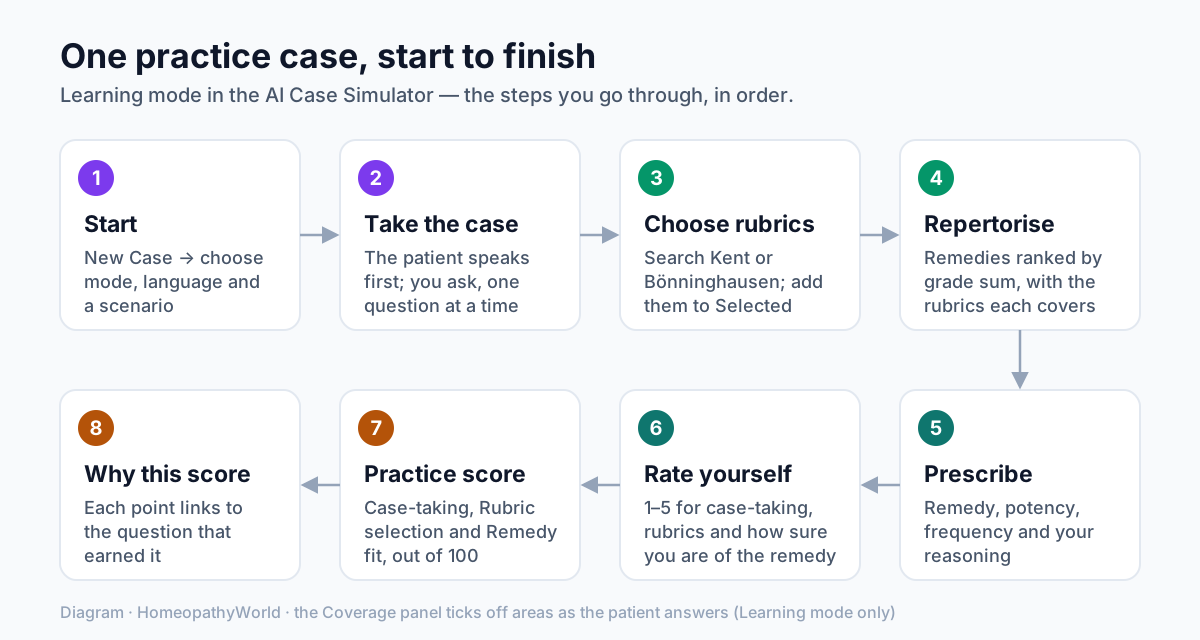
Diagram: the steps of one practice case in Learning mode. The rest of this guide walks through each one.
Before you start
- Your daily allowance. The Free plan lets you start 3 new cases a day, and the count resets at midnight India time. There is no cap on the number of questions in a case. Each case does have an AI allowance: typed questions almost never use it up, but a long spoken consultation can, and the patient then stops replying. For higher limits, see Settings → Billing & Plan.
- Your language. Cases start in your default language. You can set it once under Settings → AI & Voice, in Default case language, or choose a language each time you start a case.
- Your screen. A laptop gives you the conversation and the analysis side by side. On a phone the same screen splits into two tabs, Chat and Analysis.
Step 1: Find your way around the Cases page
Open AI Case Simulator from the sidebar. The page is headed Case Simulator, and the New Case button sits at the top right.
- Stat chips. Completed, In Progress and Total Cases show your counts. Tap one to filter your case list, and tap ← Back to overview to return.
- Resume banner. If a case is unfinished, a banner reads Pick up where you left off. Tap Resume to continue exactly where you stopped. With more than one unfinished case, View all lists them.
- Case Library. These are the scenarios you can practise. Filter chips (All, Acute, Chronic, Constitutional, Pediatric, Follow-up) narrow the list, and a chip only appears when that group has cases in it. Each card shows the difficulty, acuity, miasm, tags and an estimated time. The cards are for browsing: you start a case from New Case.
- Recent Sessions. Your latest cases appear here. Unfinished ones have Resume and a bin icon to discard them; finished ones have View.
Your dashboard also shows a Today's Case card, which features a different library case each day. Tapping Start today's case starts that case in Learning mode and in your default language. If you already have an unfinished case, you are first asked whether to resume it or start the new one.
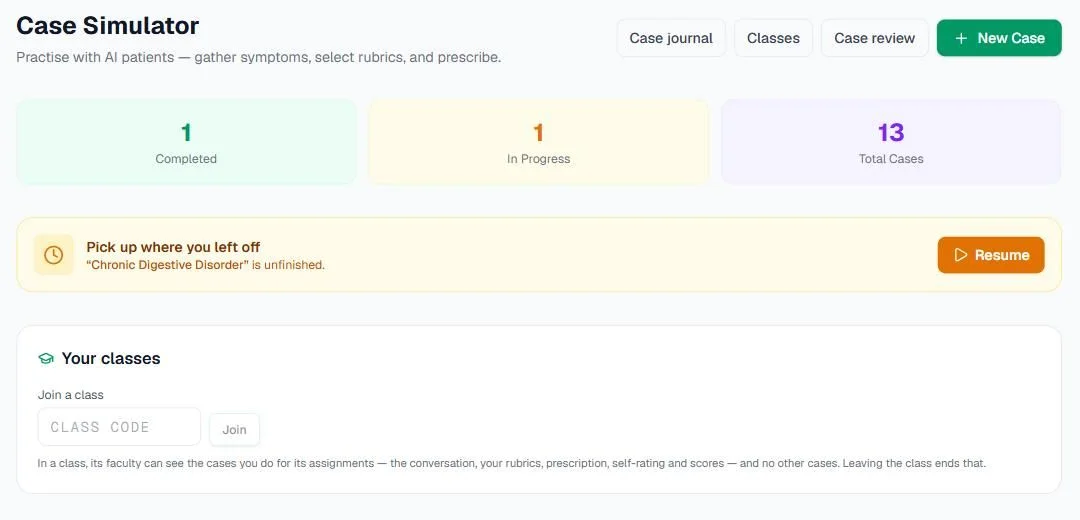
Screenshot from our own account, 13 September 2026: one completed case, one in progress, and the resume banner for the unfinished one. Total Cases also counts cases that were discarded.
Step 2: Start a case with New Case
- Tap New Case.
- If you already have an unfinished case, a box titled You have an unfinished case asks what to do. Resume this case takes you back to it. Start a new case keeps the old one for later. Discard it & start new takes it out of In Progress, though it stays in your history.
- In the Start a Case dialog, leave Mode on Learning. Learning mode shows symptom hints, rubric suggestions and scoring guidance. Exam mode is a timed station with no hints, covered in its own guide.
- Under Language, choose one of the eight case languages: English, Hindi, Marathi, Tamil, Telugu, Kannada, Bengali or Gujarati. English cases receive a number. Cases in the other languages receive feedback without a number, marked "Unscored", until scoring in that language has been validated.
- Under Choose a Scenario, tap a case. It starts straight away, so there is no second confirm step. Random / Free Case gives you a patient you have not met in the library.
If you have used your cases for the day, the dialog says so and links to the upgrade page.
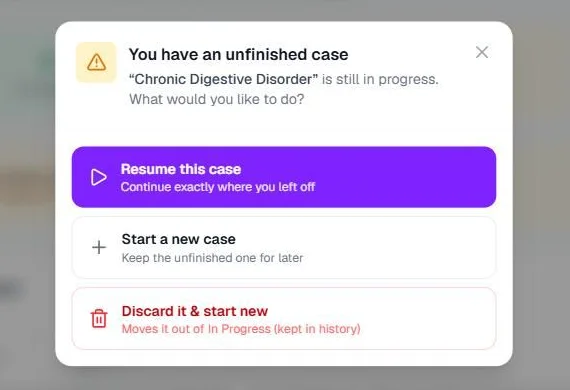
Screenshot, 13 September 2026: the box that appears when you tap New Case while a case is still unfinished.
Step 3: Let the patient speak first
The patient opens the conversation with their complaint. A card at the top shows their name, age, chief complaint, difficulty and tags. The arrow collapses it to give you more room.
Before your first question you will usually see a card headed Before you begin. It reminds you to let the patient tell the story in their own words before you fill the gaps (Organon §§83–104). It lists the areas you will be marked on and tells you that you will rate your own work before you see a score. Read it, then tap Got it.
Type your question in the box marked "Ask the patient about their symptoms..." and send it. Ask one question at a time, and start with open questions such as "Tell me more about that." If a reply ever fails, your question goes back into the box with a short message, and you can simply send it again.
Step 4: Treat the hints as hints
Learning mode gives you three kinds of help. None of them does the work for you.
- Symptom chips. Coloured chips appear under a patient's reply. They are labelled "Noticed — for reference. Add rubrics yourself in the Rubrics tab." They are colour-coded as mental, general and particular symptoms. They add nothing to your case: selecting rubrics is still your job.
- Suggested questions. A row marked Suggest: may offer follow-up questions. Tapping one sends it to the patient as your question. You learn more by wording your own.
- Coverage. The Coverage panel above the right-hand tabs ticks off the areas the patient's answers have covered, shown as "X of Y areas". It never tells you what the patient should say.
After about six questions, a green prompt reading You have enough to work with. may appear. It is only a nudge: you can dismiss it and keep asking.
Step 5: Build your rubrics
The right-hand panel has three tabs: Rubrics, Remedies and Case Sheet.
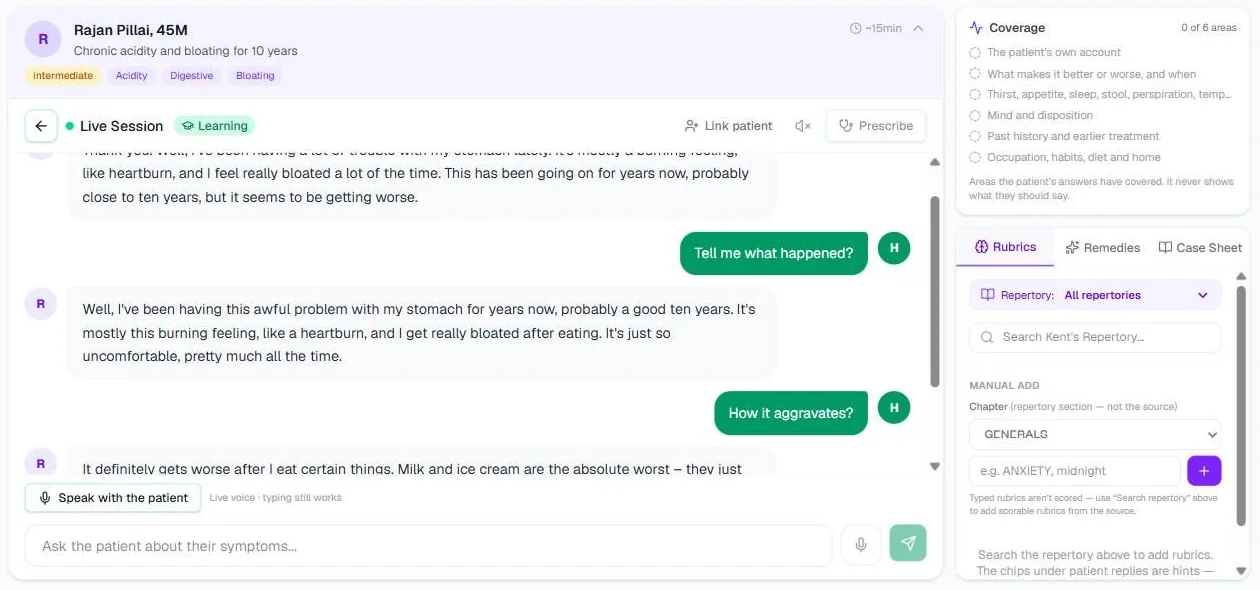
Screenshot from our own account, 13 September 2026, of an unfinished chronic case in Learning mode. The case was started in June, before the coverage meter existed, so none of its areas are ticked. The patient is simulated.
On the Rubrics tab:
- Use the Repertory: dropdown to search All repertories or a single one: Kent's Repertory (68,739 rubrics) or Bönninghausen's Pocket-Book (2,718 rubrics).
- Type at least three letters into the search box. Each result shows the chapter, the rubric, a source badge and the number of remedies in it. Tap a result to add it.
- Your choices collect under Selected. To remove one, use the small cross beside it (on a laptop it appears when you hover).
- Under Manual Add you can type a rubric of your own. Typed rubrics are marked "(manual · not scored)" and are left out of repertorisation, so add rubrics from search whenever you can.
The Case Sheet tab fills in by itself as the patient describes symptoms, under Chief Complaint, Mental Generals, Physical Generals and Particulars. Use it to check your picture of the case. It is not your analysis.
Step 6: Repertorise
Tap Repertorize. The number beside it counts only the rubrics you added from search. The Remedies tab opens with up to twelve remedies ranked from the repertory. Each shows its total grade and how many of your rubrics it covers, and remedies that tie are marked as tied. Tapping a remedy puts it into your prescription.
A repertory result points you to remedies worth studying. It is not the answer. Compare the top few against the Materia Medica before you decide.
Step 7: Link a patient (optional)
If you use the simulator alongside your own patient records, Link patient in the case header (an icon on a phone) lets you search your patients and attach this case to one. You can change or unlink the patient later. Most students leave this out.
Step 8: Prescribe
The Prescribe button in the header (it reads Rx on a phone) becomes active once you have selected at least one rubric. It opens the Final Prescription panel:
- Remedy: type the name. Suggestions appear as you type.
- Potency: choose from 6C up to 50M, or LM1 to LM3.
- Frequency: choose from Single dose to As needed.
- Reasoning: optional, but write it. Name the symptoms that led you to this remedy.
- Tap Submit & Get Score.
Step 9: Rate yourself, then see your score
If you asked any questions aloud, you will first be asked to Check what the microphone heard.
Next comes Before your score. Rate yourself from 1 (weak) to 5 (thorough) on three questions: how thoroughly you took the case, how well your rubrics capture the patient, and how sure you are of your remedy. You can also add One thing you would do differently. Tap See my score. You rate each case only once, so be honest.
After a short wait, a card labelled Practice score shows your mark out of 100, with Case-taking, Rubric selection and Remedy fit underneath. The card has three buttons: Why this score, Review chat and Done. The Practice score is a learning aid, not an official grade: the answer keys are still being signed off by homeopath reviewers.
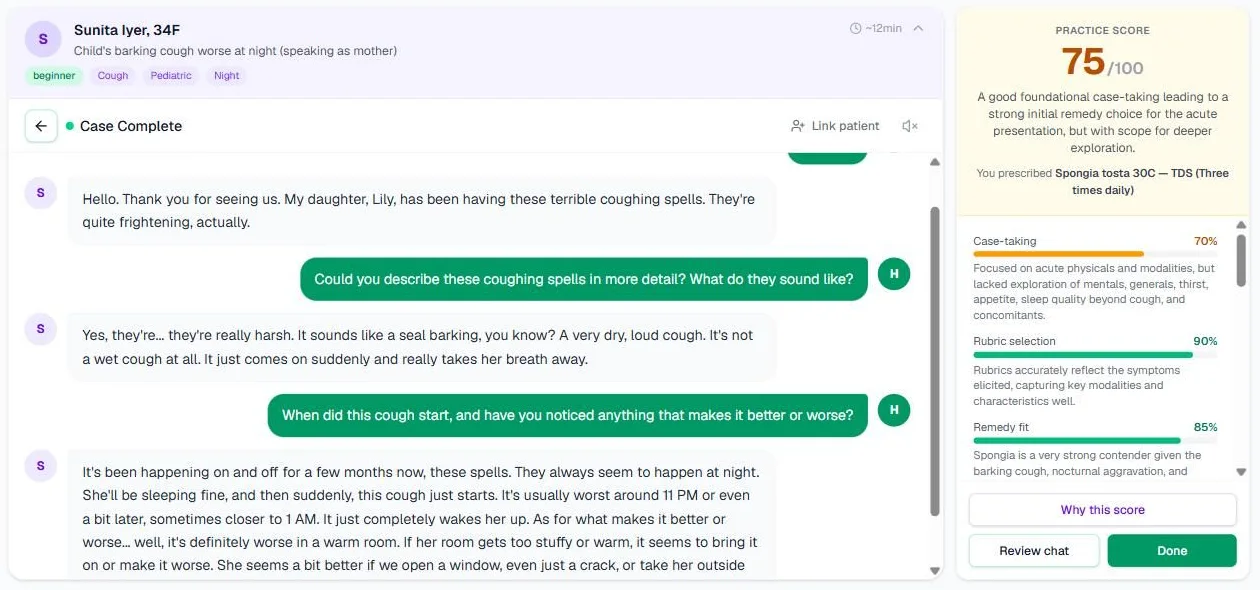
Screenshot from our own account, 13 September 2026, of a practice case finished in June: a child's barking cough, prescribed Spongia tosta 30C. The patient is simulated.
A worked example: the acute fever case
Acute Febrile Illness is a beginner case in the Acute group, estimated at about ten minutes. The patient comes with a high fever that began two days ago.
- Tap New Case, keep Learning, choose English, and tap Acute Febrile Illness.
- Let the patient describe the fever fully before you ask anything specific.
- Then fill the gaps: the onset and what brought it on, the sensations, what makes it better or worse, thirst, sleep, and the patient's state of mind during the fever.
- Glance at Coverage. If an area is still unticked, think about which question you have not asked yet.
- Search for four to six rubrics that capture what is characteristic in this patient, not what every fever patient has.
- Tap Repertorize, compare the leading remedies in the Materia Medica, then prescribe with a line of reasoning.
- Rate yourself, read your score, and open Why this score.
Common mistakes
- Treating the chips as rubrics. They are hints only, and nothing is added until you choose a rubric yourself.
- Relying on manual rubrics. They are not scored and do not reach the repertory. Use search.
- Prescribing the top remedy without thinking. Repertorisation narrows the field. Your Materia Medica knowledge makes the choice.
- Leaving half-finished cases behind. Resume them or discard them, so your In Progress list shows what you really mean to finish.
Try it now
Open the case simulator and start with a beginner case.
Next in this series
Dr. Harish Kumar
Homeopath and founder of HomeopathyWorld. Writes on materia medica, case-taking, repertory and the Organon for students and practitioners.
Put this into practice
Repertorise these symptoms against the real Kent & Bönninghausen, read the full Materia Medica, and practise the case on an AI patient — free account, no card required.
Create your free accountMore in Tutorials
Discussion
Sign in to join the discussion.
No comments yet — start the conversation.