
Tutorials
Settings, privacy and security in HomeopathyWorld
By Dr. Harish Kumar · September 12, 2026 · 8 min read
Every Settings page explained: your profile, plan and billing, notifications, AI and voice, privacy choices, two-factor authentication and deleting your account.
Most people open Settings once, change their name and never come back. That is a pity. A few minutes here decide what the app shows you, what it sends you, who can see your profile and how well your account is protected. This guide goes through every Settings page in order.
Before you start
Open Settings at the bottom of the sidebar. The top of the page shows your name, email and current plan. Below that:
- Workspace: choose Clinic or Community. Clinic hides community, leaderboard and gamification, which keeps the app focused on clinical work. Community shows everything. You can switch at any time here, or with the toggle near the top of the sidebar.
- Account: Profile
- Subscription: Billing & Plan
- Preferences: Notifications and AI & Voice
- Privacy & Security: Privacy, Password & Security and Delete Account
Profile
Profile opens Edit Profile. Here you set your Full Name, Username, Bio, City, State, College / Institution and Mobile Number. The mobile number has a country-code menu that starts at +91. Students also see BHMS Year and Registration No., and practitioners see Specialisation.
Your email is shown here, but you can't change it on this page. The form asks you to contact support instead. Click Save changes when you are done.
Your username is your public @handle, and the field checks whether it is free as you type. Community, your profile and achievements covers claiming a handle and what your public profile shows.
Billing & Plan
Billing & Plan opens the Billing & Subscription page.
- Current Plan shows Free Plan or Practitioner Pro. On the Free plan it lists what you get, such as up to 10 patient records and up to 3 saved analyses. On Practitioner Pro it shows the renewal date.
- To upgrade, look at the Practitioner Pro card, which shows the price and features. Click Subscribe to open a secure checkout (payments are processed by Razorpay). Once payment is complete, you return to the page and see a Subscription activated! message.
- If the card shows Contact us to subscribe instead of Subscribe, online payment is not available just then. That button opens an email to us.
To cancel:
- Click Cancel subscription under your current plan.
- Read the confirmation. You keep Practitioner Pro access until the end of your current billing period, then move to the free plan. You won't be charged again.
- Click Cancel subscription to confirm, or Keep subscription to change your mind.
A Subscription set to cancel banner then shows the date your access ends. Prices are on the Billing page itself. For a college licence, use the Contact us button under Need a college license?.
Notifications
The Notifications page has three parts and a save button.
Push notifications. You turn push on separately on each device. Click Enable next to Push notifications on this device, then allow notifications when your browser asks. The app only asks after you click, never on its own. Turn off undoes it. Two situations to know about:
- iPhone and iPad. Notifications only work once HomeopathyWorld has been added to your Home Screen, and the page says Add to Home Screen first. Tap Share, then Add to Home Screen, and open the app from the new icon.
- Blocked. If you declined notifications before, the page shows Notifications are blocked and the app can't ask again. To turn them on, allow notifications for HomeopathyWorld in your browser's site settings.
In-app notifications. These control what reaches the notification bell:
- Community replies: when someone replies to your posts
- Achievements & milestones: XP gains and badges earned
- Reminders: appointments, patient follow-ups and streak nudges
Email. A single switch, Email updates, covers occasional updates and reminders. Account emails such as password resets and payment receipts are always sent.
Click Save preferences. The in-app and email switches only take effect once you save. Push changes as soon as you click Enable or Turn off.
AI & Voice
AI & Voice sets the defaults for the AI case simulator.
- Default case language: new case sessions start in this language. You can pick another when you start a case; the case then stays in that language to the end.
- Voice narration on by default: new sessions start with the patient's replies read aloud. You can still turn this on or off in each session.
Click Save preferences.
Privacy
Show my public profile. When this is off, other members can't see your profile page, including your bio, stats and achievements. They see a message saying the profile is private. Your name still appears on your own posts and on the leaderboard. The switch saves as soon as you flip it.
Your data. Download my data gives you a JSON file of your account data: profile, patients, case sessions, saved analyses, community posts and bookmarks. It is worth doing now and then, and certainly before you delete your account.
The calibration set. You may also see a Case simulator card with the switch Let reviewers use my completed cases to check the scorer. Here is how it works, as described in the app and the Privacy Policy:
- It is off unless you turn it on.
- If you turn it on, reviewers may copy a completed case into a set of cases. Designated homeopath reviewers mark this set to check that the automatic scorer agrees with faculty. The copy holds the conversation with the simulated patient, your rubrics and your prescription.
- The copy has no name or account details. The Privacy Policy says it is used for nothing else and is not used to train AI models.
- Copies are kept for at most 2 years and then deleted automatically.
- Switching the setting off deletes your copies at once. They are also deleted when the case or your account is deleted.
- The card shows how many of your cases are in the set.
Section 11 of the Privacy Policy has the full details.
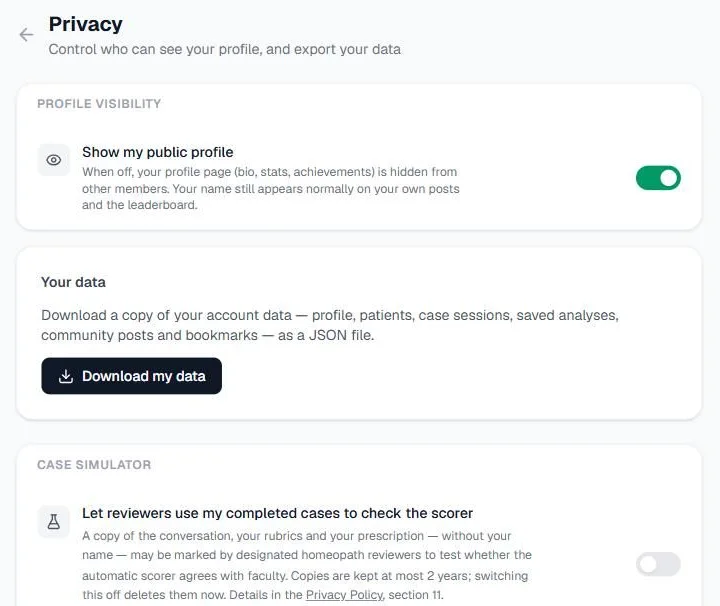
Screenshot from our own account, 13 September 2026, with the reviewer switch off.
Password & Security
The top of this page shows the email you are Signed in as.
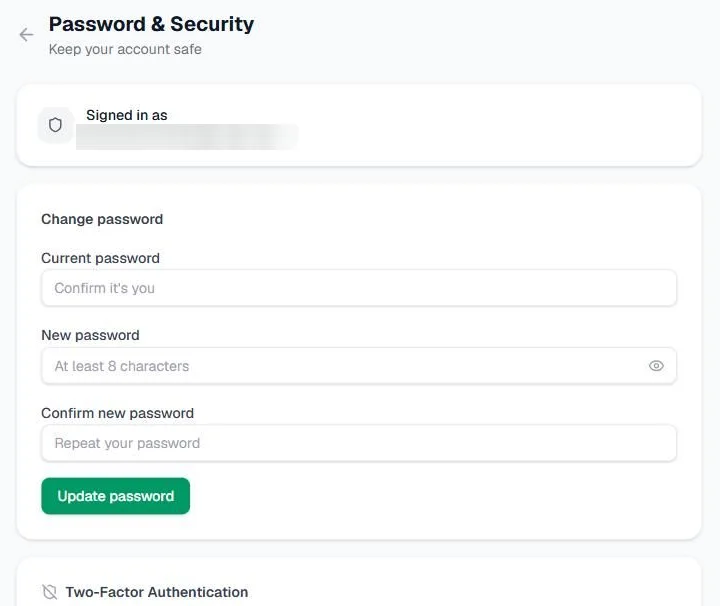
Screenshot from our own account, 13 September 2026. We blurred our email address; your page shows yours.
Change your password
Enter your Current password, then a New password of at least 8 characters, then Confirm new password. Click Update password. Asking for your current password means someone who finds you signed in on a shared computer can't change it and lock you out.
Turn on two-factor authentication
With two-factor authentication (2FA), signing in needs your password and a six-digit code from an app on your phone.
- Install an authenticator app on your phone. The page names Google Authenticator, Authy and 1Password as examples.
- Under Two-Factor Authentication, click Enable 2FA.
- Scan the QR code with the app. If you can't scan it, type in the code the page shows under Can't scan? Enter manually.
- Type the current six-digit code from the app into 6-digit code and click Verify & enable.
- The page now shows your backup codes. You will only see them this once. Click Copy codes, store them somewhere safe away from your phone, then click I've saved these codes.
From your next sign-in, a Two-factor verification screen appears after your password. Enter the code from your app in Authenticator code and click Verify.
If you lose your phone, click Lost your device? Use a backup code on that screen and enter one of your backup codes. Each code works only once.
To turn 2FA off, click Disable 2FA, then Yes, disable, or Keep it on if you change your mind. Turning it off also removes your backup codes. If you turn 2FA on again later, you get a new set.
Tip: keep the backup codes in a password manager, or print them and file them with your registration certificate. A screenshot on the same phone as your authenticator app is no help if you lose the phone.
Delete your account
Delete Account removes your account for good. The page lists what goes:
- your profile and login, and any saved payment or subscription link
- every patient record, consultation and case history you created
- your case simulations, saved analyses and bookmarks
- your community posts and comments
To delete:
- First, use the download your data link at the top of the page. Once the account is deleted, the data cannot be recovered.
- If you are on Practitioner Pro, cancel it under Billing & Plan first.
- Type delete my account in the box.
- Click Delete my account permanently.
The page says deletion is immediate and cannot be undone. Records the law requires us to keep, such as tax and payment records, are kept in anonymised form and are no longer linked to you. The Privacy Policy adds that leftover backups are cleared within 90 days.
Common mistakes
- Changing notification switches and leaving without saving. Click Save preferences.
- Expecting push notifications on iPhone from the browser. Add the app to your Home Screen first.
- Not saving backup codes. Without them, a lost phone can lock you out.
- Deleting before downloading. Download your data first.
Try it now
Open Settings and check two things: that Reminders is on under Notifications, and that two-factor authentication is on under Password & Security.
Next in this series
Dr. Harish Kumar
Homeopath and founder of HomeopathyWorld. Writes on materia medica, case-taking, repertory and the Organon for students and practitioners.
Put this into practice
Repertorise these symptoms against the real Kent & Bönninghausen, read the full Materia Medica, and practise the case on an AI patient — free account, no card required.
Create your free accountMore in Tutorials
Discussion
Sign in to join the discussion.
No comments yet — start the conversation.