
Tutorials
Getting started with HomeopathyWorld: your first day
By Dr. Harish Kumar · September 12, 2026 · 8 min read
A first-day guide for BHMS students, practitioners and educators: signing up, reading the dashboard, finding each module, Clinic mode, installing the app and daily limits.
This guide is for anyone opening HomeopathyWorld for the first time, whether you are a BHMS student, a practising homeopath or a teacher. By the end you will have an account, you will know what each part of the dashboard is telling you, you will know where every module lives, and you will understand the daily limits on the Free plan. It takes about ten minutes.
Before you start
- An email address you can open now, because you will need to confirm it.
- A phone or a computer. Everything works in the browser, and you can install it as an app later.
- No payment details. The Free plan needs no card.
Step 1: Create your account
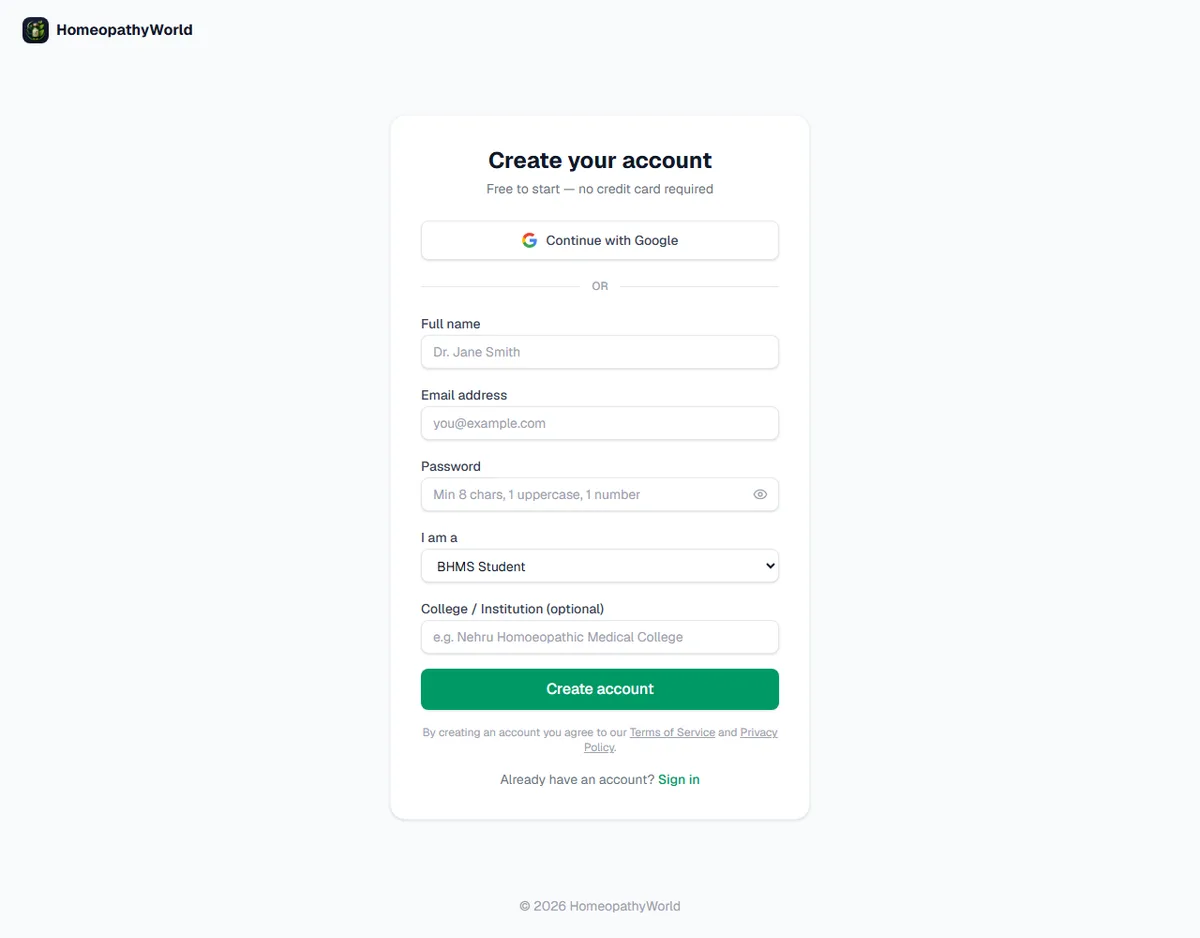
Screenshot of the sign-up page, homeopathyworld.in, 13 September 2026.
- Open Create your account.
- Fill in Full name, Email address and Password. The password needs at least 8 characters, including one uppercase letter and one number.
- Under I am a, choose BHMS Student, Homeopathic Practitioner or Professor / HOD.
- Add your College / Institution (optional) if you like.
- Press Create account.
- You will see Check your email. Open the confirmation link we send, then sign in.
Your choice under I am a shapes the sidebar a little. Students and practitioners see Patient's Records and Appointments; the Professor / HOD role does not. On your profile chip in the sidebar the roles read Student, Practitioner and Educator.
Step 2: Follow the short tour
The first time you reach the dashboard, a short tour highlights the sidebar one item at a time: AI Case Simulator, Repertorization, Materia Medica, Community, and the Clinic mode switch. Use Next and Back to move through it and Finish at the end; a last card, You're all set!, closes with Got it. The cross in the corner skips it. On a phone the menu slides open so you can see what is being pointed at.
You can replay it at any time with the ? button in the top bar (more on that in Step 5).
Step 3: Read your dashboard
The dashboard is the page you land on after signing in. From top to bottom:
The Get started checklist
A card headed Get started shows how far you have got ("2 of 5 done") and lists the steps:
- Claim your @handle: pick the public username that appears on your profile and posts.
- Complete your first case: starting a case is not enough; it ticks only once a case is finished and scored.
- Run a repertory analysis: this ticks once you save an analysis.
- Bookmark an Organon aphorism: open any aphorism in the Organon and press Bookmark to save it.
- Add your first patient: shown for students and practitioners only.
Each step ticks itself from what you actually do, and the card disappears once every step is done. If you would rather not see it, close it with the cross.
The greeting and your numbers
The green panel greets you and shows Cases solved, your XP with your level (XP · Level 1 to begin with) and your Day streak. Below it, a bar shows your Level 1 progress. Opening the dashboard once a day is enough to keep your streak going.
Continue where you left off
If you have a case in progress, a purple card headed Continue where you left off appears with a Resume button. It is the quickest way back into an unfinished consultation.
Today's Case
Today's Case changes every day and works through the whole case library. The card shows the difficulty, the acuity, the miasm and roughly how many minutes the case takes. Tap Start today's case to begin. If you already have a case open, you will be asked whether to resume it or start the new one.
Quick Start
Quick Start gives you one-tap routes into the AI Case Simulator, Repertory and Materia Medica. Tap Show 3 more for Organon, Study Assistant and Community. In Clinic mode, where Community is hidden, it reads Show 2 more.
Recent Activity and Community
Recent Activity lists your latest cases, with a score chip on the ones you have finished, and any recent bookmarks. Next to it, the Community panel shows new discussions and the top learners.
On the Free plan you will also see a card counting how many of today's case sessions you have used, with an Upgrade now button.
Step 4: Find your way around the sidebar
Every module is one tap away in the sidebar on the left. On a phone, open it with the menu icon at the top left, or swipe in from the left edge of the screen.
| Sidebar item | What it is for | Address |
|---|---|---|
| Dashboard | Your home page, described above | /dashboard |
| AI Case Simulator | Take cases from AI patients, choose rubrics, prescribe and get feedback | /cases |
| Materia Medica | 6 classic books (Boericke, Allen's Keynotes, Boger, Kent, Tyler, Farrington) covering 789 remedies | /remedies |
| Repertorization | Kent's Repertory (68,739 rubrics) and Bönninghausen's Therapeutic Pocket-Book (2,718 rubrics) | /repertory |
| Organon | All 291 aphorisms of the Organon | /organon |
| Patient's Records | Your patient register and consultations (students and practitioners) | /patients |
| Appointments | Scheduled visits and follow-ups (students and practitioners) | /appointments |
| Community | Discussions with other students and practitioners | /community |
| Leaderboard | Rankings by XP | /leaderboard |
| Bookmarks | Everything you have saved, in one place | /bookmarks |
| AI Study Assistant | An AI tutor for questions while you study | /study-assistant |
| Settings | Profile, plan, notifications, language, privacy and security | /settings |
On a computer, the small arrow beside the logo collapses the sidebar to icons if you want more room.
Step 5: Use the help button
The ? button in the top bar ("Show help for this page") gives you help for wherever you are:
- On Patient's Records, Appointments, Repertorization, Bookmarks, the AI Case Simulator and Materia Medica, it opens a short introduction to that section: a few steps, and a short clip on some pages.
- Everywhere else, it replays the tour from Step 2.
Each section's introduction also opens by itself the first time you visit that section. If you would rather not see them, choose Don't show these again.
Step 6: Choose Clinic or Community mode
Just under your name in the sidebar is a two-way switch: Community and Clinic.
- Community is the full experience: discussions, the leaderboard, XP and streaks.
- Clinic is a focused clinical workspace. It hides Community, Leaderboard, XP and streaks, and the related notifications.
Clinic mode changes only what you see. Your XP and streak keep counting quietly in the background, so nothing is lost if you switch back. The same choice is under Settings, in the Workspace section. While Clinic mode is on, a small banner reminds you how to switch back until you close it.
Step 7: Install the app on your phone
After you have spent about half a minute on the site, a card may appear at the bottom of the screen headed Install HomeopathyWorld.
- On Android, press Install. HomeopathyWorld then opens from your home screen like any other app. Maybe later brings the card back later in your visit.
- On iPhone, the card explains what to do. Tap Share in the browser, then Add to Home Screen. Press Got it to close the card.
The cross on the card dismisses it for good on that device. If you change your mind later, you can still add the site to your home screen from your browser's own menu.
Plans and daily limits
Everyone starts on the Free plan. Its limits are:
- 3 new cases per day. There is no cap on the number of questions in a case, so take as long as the case needs. Each case has an AI allowance; typed questions almost never use it up, though a long spoken consultation can.
- 30 Study Assistant messages per day.
- Up to 10 patient records.
- Up to 3 saved repertory analyses.
Daily limits reset at midnight India time. If you reach one, you will see a message with a link to upgrade. The paid plan is Practitioner Pro; for what it includes and what it costs, see Settings → Billing & Plan.
Tips
- Claim your handle first. It takes a minute and makes your profile and posts recognisable.
- Finish one case end to end on your first day. Rubrics, prescription and score together teach far more than three half-taken cases.
- Set your case language once. Settings → AI & Voice sets the default language and voice narration for the case simulator, so every new case starts the way you prefer.
- Remember the clock. Your three free cases reset at midnight India time, so a case started late in the evening counts towards that day's limit.
Try it now
Open your dashboard and work through the Get started checklist, or go straight to the case simulator and start Today's Case.
Next in this series
Dr. Harish Kumar
Homeopath and founder of HomeopathyWorld. Writes on materia medica, case-taking, repertory and the Organon for students and practitioners.
Put this into practice
Repertorise these symptoms against the real Kent & Bönninghausen, read the full Materia Medica, and practise the case on an AI patient — free account, no card required.
Create your free accountMore in Tutorials
Discussion
Sign in to join the discussion.
No comments yet — start the conversation.