
Tutorials
Repertorisation Step by Step: Search, Analyse, Compare and Save
By Dr. Harish Kumar · September 12, 2026 · 10 min read
A full walk through the repertory: finding rubrics in Kent or Bönninghausen, reading the grid and its warnings, comparing remedies, and saving or printing your work.
All repertorisation on HomeopathyWorld happens on one page. In the sidebar it is Repertorization, and the page itself is headed Repertorize. This tutorial follows the order you will use it in. Updated 15 September 2026 with new screenshots, rubrics from the Materia Medica, and Your rubrics in its books.
Before you start
- Take and rank the case first. The repertory can only work with the rubrics you give it. If you are unsure how to turn what the patient said into a rubric, read From symptom to rubric first.
- Know your two repertories. You get Kent's Repertory of the Homeopathic Materia Medica (1897), with 68,739 rubrics graded 1 to 3, and Bönninghausen's Therapeutic Pocket-Book (1891, T.F. Allen's edition), with 2,718 rubrics on its own four-degree scale. Both are in the public domain. Kent vs Bönninghausen explains when to reach for each.
- Learn the three tabs. The page has Search Rubrics, Analysis and Clipboard. Every tab change is recorded as a step in your browser history, so your browser's back button (or swipe-back on a phone) takes you to the tab you were on before.
Step 1: Find rubrics in the Search Rubrics tab
- Type a few words into the search box, for example "anxiety night" or "worse cold wind", and press Search.
- Narrow the results with the two dropdowns. All repertories lets you pick Kent or Bönninghausen, and All chapters limits results to one chapter, such as Mind.
- Read each result. It shows the chapter, the rubric path, which repertory it comes from, and a small badge with the number of remedies actually graded in that rubric.
- Click a rubric to open its detail panel. There you see its synonyms and its full remedy list, coloured by grade: plain for 1, blue for 2, red for 3, and purple for Bönninghausen's fourth degree.
- Press Add to Analysis in the panel, or the round plus button on the result row.
Some rubrics carry a no remedies badge. They have no gradings in our data, so the app will not add them and tells you why. An empty rubric would lower every remedy's coverage without adding anything.
Tip: the chapter list uses Kent's chapter names. When you search the Pocket-Book, leave the filter on All chapters so that its modality rubrics are not filtered out.
The Selected Rubrics basket
As soon as you add a rubric, a Selected Rubrics box appears at the top of the Search tab. Each chip shows the full rubric path and its repertory, with a cross to remove it.
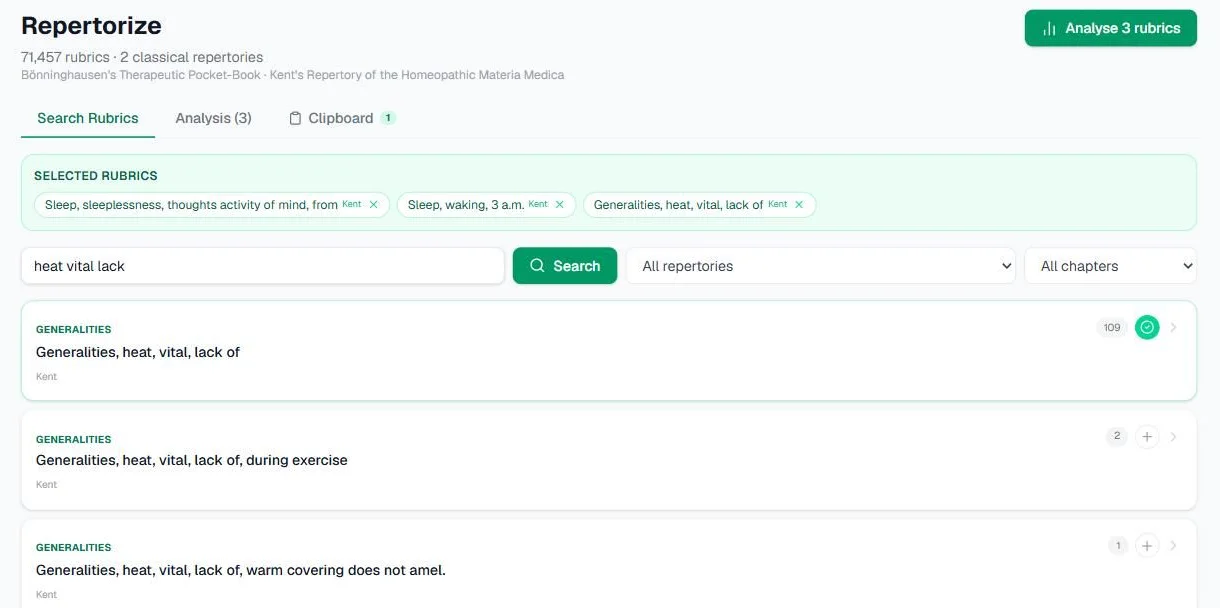
Screenshot from our own account, 13 September 2026: three Kent rubrics in the basket, with the search results for the third.
If you add a rubric together with its own parent, for example "Mind, fear" and "Mind, fear, death, of", an amber note warns that the symptom now carries roughly double weight. Nothing is removed for you. Keep whichever rubric is more characteristic of this patient.
Rubrics from the Materia Medica
You can also start from the books. In the Materia Medica library, search the words of a symptom, press Find repertory rubrics for these words, tick the rubrics that fit, and press Add to the repertory basket. The repertory opens with them in the basket and a note saying where they came from.
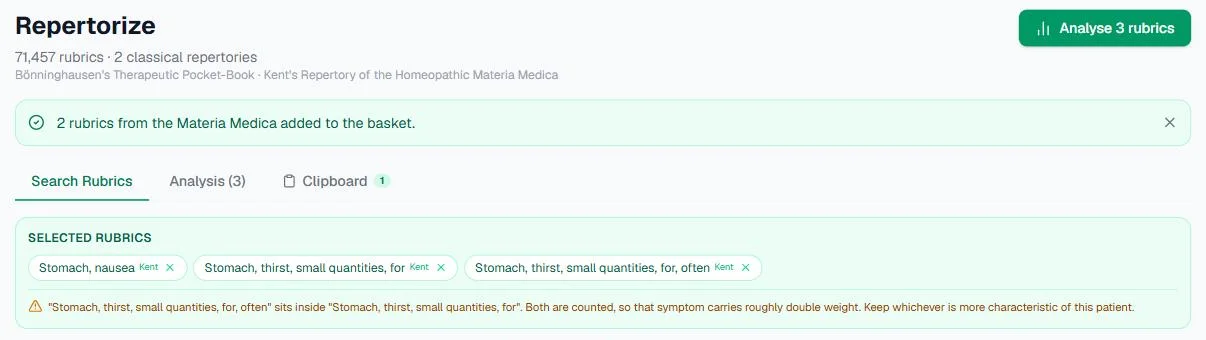
Two rubrics added from a search for "thirst small quantities", 14 September 2026. One sits inside the other, and the amber note says so.
Step 2: Run the analysis
When the basket has rubrics in it, a green button appears at the top of the page. It shows your rubric count, for example Analyse 5 rubrics. You can also press Run Analysis on the Analysis tab.
If you change the basket afterwards, the old result is cleared, because it no longer matches your selection. Run the analysis again.
The summary box at the top tells you how many of your rubrics contributed and which ordering is in use. It also carries a reminder worth taking seriously: a repertorisation is an index, not a prescription.
Read the quality notes before the ranking
Any problems with your basket are listed above the results, because they are reasons to doubt what follows. They are advisory only, and nothing is removed from your basket.
| Note | What it means | What to do |
|---|---|---|
| Too few rubrics | Fewer than three rubrics can contribute | Treat the result as a lookup, not a repertorisation |
| Very large rubrics | A rubric holds 100 or more remedies | Swap it for a smaller, more characteristic rubric |
| One symptom counted twice | A rubric and its parent are both selected | Keep only one |
| Near-identical rubrics | Two rubrics carry nearly the same remedies | Use only one of the pair |
| Contradictory rubrics | Both sides of one modality, such as worse and better from cold | Keep the side the patient actually has |
You may also see gentler notes when every rubric comes from one chapter, or when you mix the two repertories. When you mix them, scores are normalised so that a top-degree mark counts the same in each. Why fewer, sharper rubrics work better is covered in Rubric weight: fewer, better rubrics.
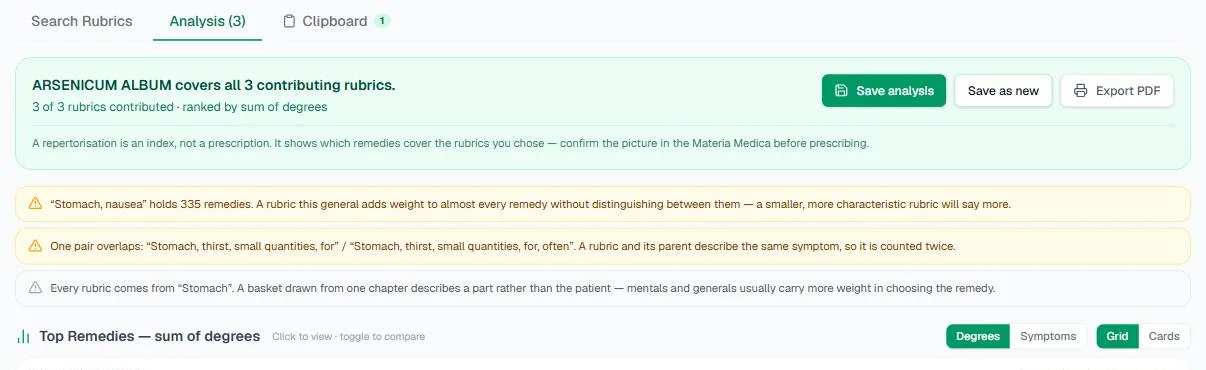
The same basket analysed, 14 September 2026. All three notes apply: one very large rubric, one symptom counted twice, and a single chapter.
Step 3: Read the repertorisation grid
Results open in the Grid view by default. You can switch to Cards with the toggle beside it.
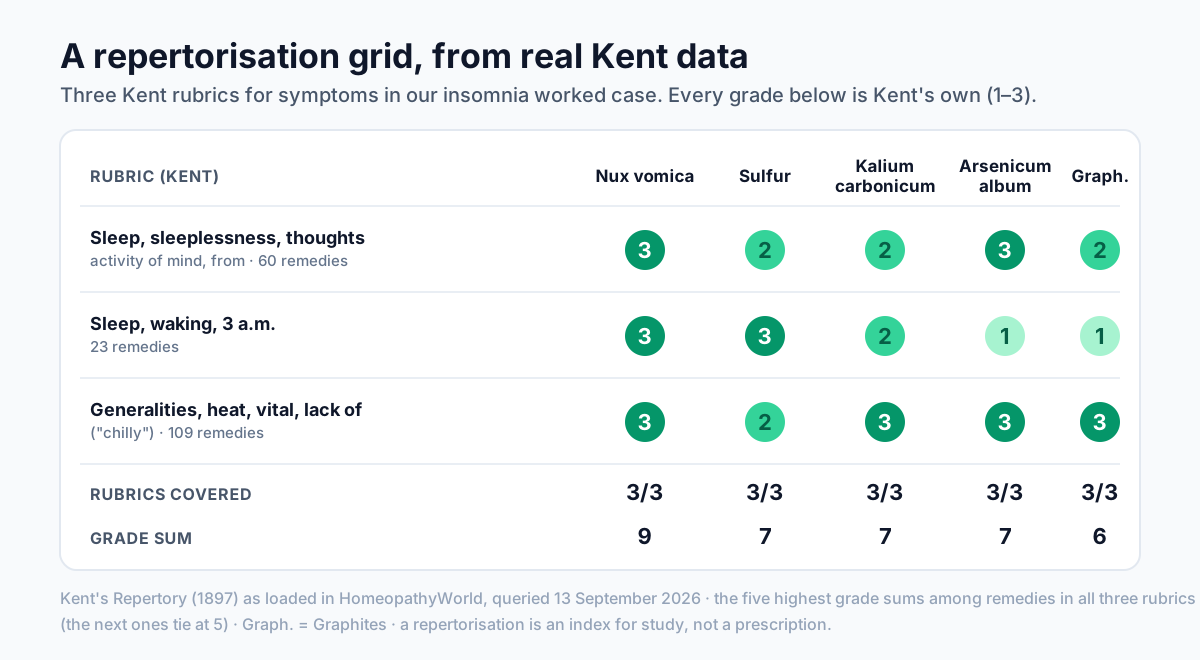
A diagram, laid out like the grid, built from real Kent's Repertory grades: three rubrics from our insomnia worked case. The app's grid shows up to 15 remedies and marks gaps as faint dots.
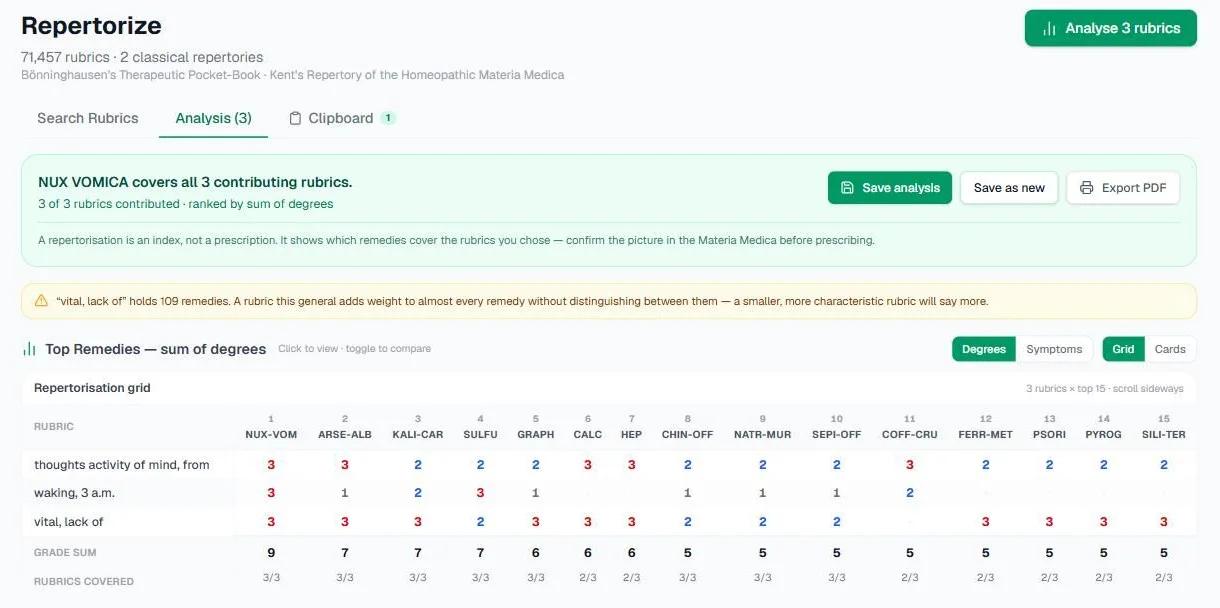
The same three rubrics in the app, 13 September 2026. The live grid gives the same leaders as the diagram, and adds the amber note about the 109-remedy rubric that Step 2 asks you to read first.
- Each row is one of your rubrics, and each column is one of the top 15 remedies.
- Each cell shows that remedy's grade in that rubric.
- A faint dot is a gap, meaning the remedy is not in that rubric at all. Look for gaps in the leading remedy's column. What the leader does not cover is often the most useful thing on the screen.
- Along the bottom, Grade sum totals the grades, and Rubrics covered shows how many of your rubrics each remedy appears in, for example 4/5.
The grid scrolls sideways and the rubric column stays fixed. Click a remedy's abbreviation at the top of a column to open it.
Degrees or Symptoms
The Degrees / Symptoms toggle switches between the two classical readings of a repertorisation. Degrees orders remedies by sum of degrees, meaning their total grade. Symptoms orders them by sum of symptoms, meaning how many of your rubrics each one covers. The remedies and their numbers stay the same; only the order changes.
Sometimes the two orderings put different remedies first. A blue note then says so and names both leaders, with a Show sum of symptoms link. Treat that disagreement as a finding in its own right, and check both remedies before you choose.
There is no "match percentage". You see coverage and grade sum, the two numbers the discipline actually uses.
The Polarity row for Bönninghausen
If your basket holds a Bönninghausen pair of opposed modalities, a Polarity row appears under the grid. For each remedy it shows the grade on the patient's side minus the grade on the opposite side.
- An asterisk means the remedy is also graded on the opposite side, so the repertory contradicts it there.
- An exclamation mark flags Frei's contra-indication: the opposite pole is graded 3 or higher while the patient's side is 2 or lower.
Both marks are flags, not filters. When a pair gives every remedy the same grade, polarity is withheld for that pair and a note explains why.
Step 4: Remedy cards and Remedy Comparison
In Cards view, each remedy shows its rank, a line such as "Covers 4/5 rubrics (80%)", its grade sum, and a "tied with" badge when the repertory cannot separate it from its neighbours.
To compare remedies side by side:
- Press Compare on two or more cards. The button changes to Added.
- Press Compare 2 remedies (the number matches your selection).
- The full-screen Remedy Comparison opens. Rubrics run down the side, remedies across the top, and each cell shows grade dots or a dash for "not covered". Use Sort by (Score, Coverage, Grade) and the cross beside a remedy to drop it.
- Press the cross at the top right, or your browser's back button, to return.
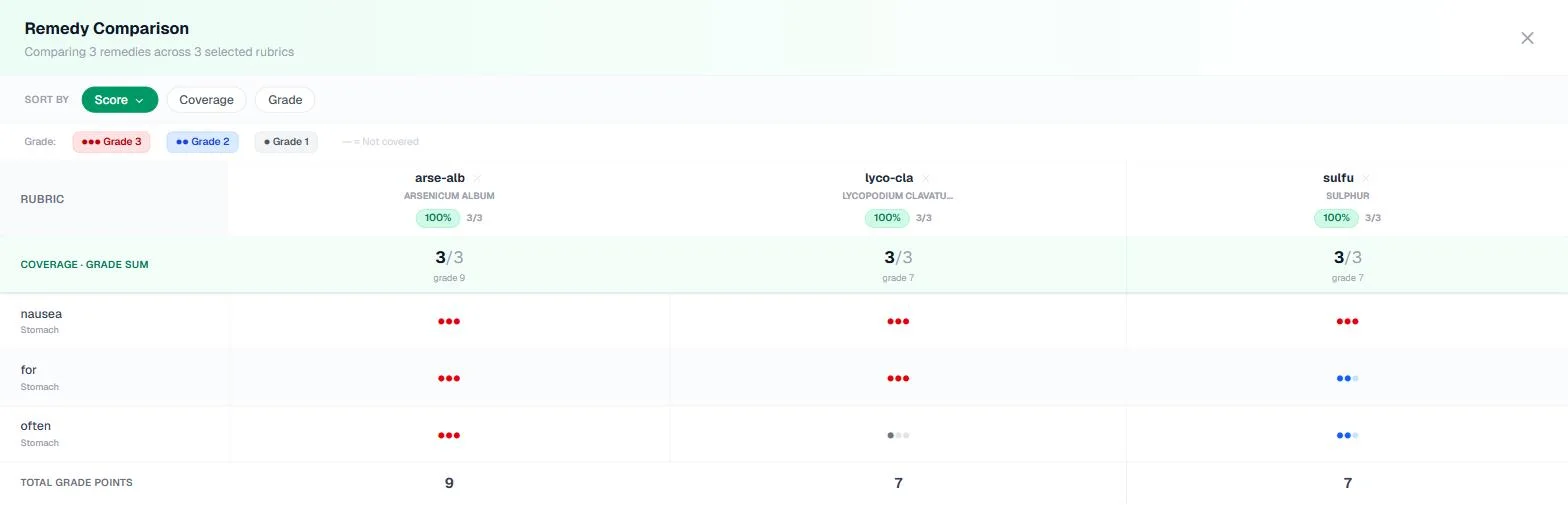
Three remedies compared, 14 September 2026.
Step 5: Open a remedy
Click a card, or a column heading in the grid, to open the remedy panel. Its header shows the kingdom, the family and miasm where these are recorded, and a cited fact such as "Allen, Keynotes (1910), p. 46", along with coverage and grade sum. It has three tabs:
- Score gives a count of your rubrics at each grade and a Rubric Breakdown listing the remedy's grade in every rubric you chose.
- Materia Medica opens with Your rubrics in its books: for each of your rubrics, where this remedy's books speak of the symptom, with the words highlighted. Below that it lists the books that contain the remedy. Click a book to read only that book's entries, or press View All Books.
- Relationships lists complementary, follow-well, antidote and inimical remedies, taken from the books' own Relationships sections.
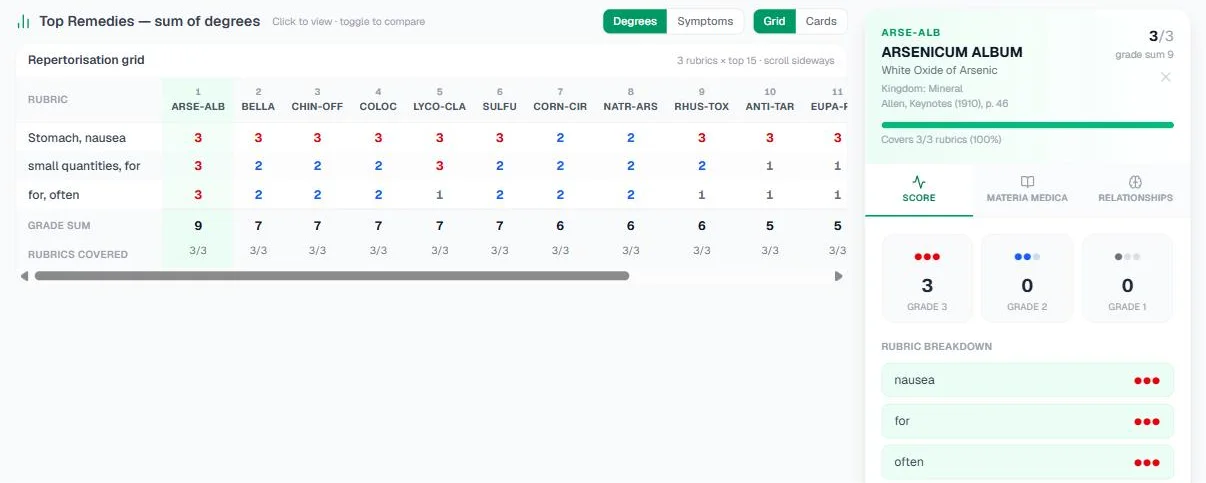
The Score tab, 14 September 2026.
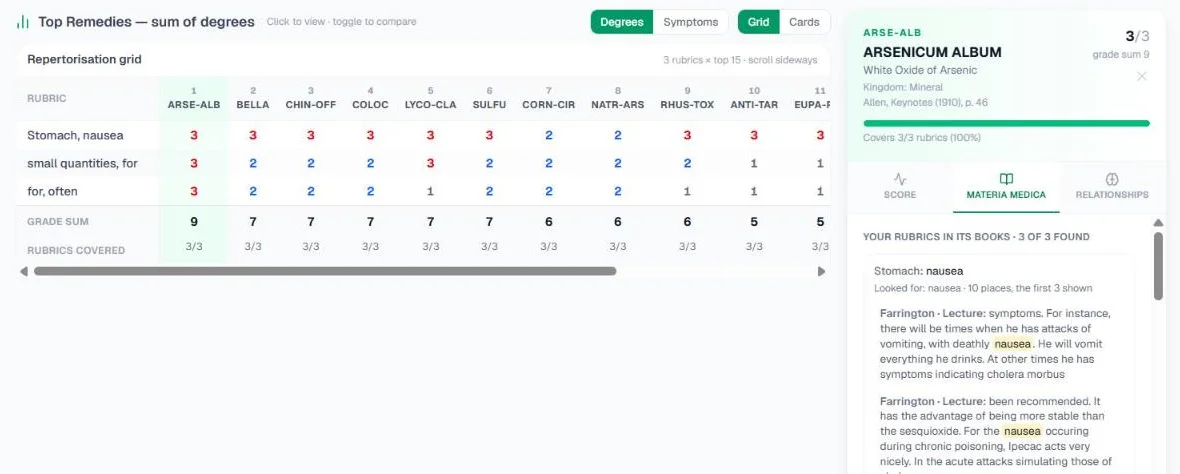
The Materia Medica tab for the same remedy, 14 September 2026. Read the passage before you trust the rank.
Full Detail opens the complete remedy page. Its Back to Analysis button brings you straight back to your grid. The Materia Medica library guide covers that page.
Step 6: Save, reload and print
- Press Save analysis. In the Save Analysis box, give it a Name, add Notes if you wish, and use Link to Patient to search your patients by name or code. Then press Save.
- Open the Clipboard tab to see your Saved Analyses. Each card shows when the result was computed, how many rubrics it used, the top remedy, and the linked patient.
- Press Load to reopen an analysis in the Analysis tab. While it is open, the save button reads Update saved and overwrites that copy.
- Click the pencil to rename an analysis (press Enter to confirm). The bin asks Delete? before anything is removed.
The free plan keeps three saved analyses. Practitioner Pro removes that limit.
Export PDF, in the summary bar or as the printer icon on a Clipboard card, opens your browser's print dialog with a Repertorization Report. The report contains the name, patient and notes, the rubric table, and the top ten remedies with coverage and grade sum. Choose "Save as PDF" in the dialog to keep a file.
If you leave before saving
Your basket and result are kept in this browser as you work. When you come back, a banner offers to restore the unsaved session: Continue takes you to the Analysis tab, and the cross discards it. The draft stays on this device only, so save anything that matters to the Clipboard. Clear & Start Over empties the basket and the draft.
Use in Case Simulator, at the foot of the Analysis tab and in the rubric panel, takes you to the AI Case Simulator.
Common mistakes
- Filling the basket with large general rubrics. They add weight to almost every remedy and separate none of them.
- Taking a rubric and its parent. You count one symptom twice.
- Reading only the top row. Check the gaps, and compare the Degrees and Symptoms orders.
- Prescribing from the grid. Confirm the picture in the Materia Medica, and remember that the minimum dose is a method, not an afterthought.
Try it now
Open the repertory, add four or five well-chosen rubrics from a case you know, and read the grid before the ranking.
Next in this series
Dr. Harish Kumar
Homeopath and founder of HomeopathyWorld. Writes on materia medica, case-taking, repertory and the Organon for students and practitioners.
Put this into practice
Repertorise these symptoms against the real Kent & Bönninghausen, read the full Materia Medica, and practise the case on an AI patient — free account, no card required.
Create your free accountMore in Tutorials
Discussion
Sign in to join the discussion.
No comments yet — start the conversation.