
Tutorials
Running a class on HomeopathyWorld: a guide for teachers
By Dr. Harish Kumar · September 12, 2026 · 8 min read
For BHMS colleges and teachers: how a class is set up, how to assign cases and timed OSCE stations, and how to review and sign off each student's attempt.
A case-taking OSCE is hard to run for a whole batch. You need standardised patients, a quiet room, an examiner at every station, and time to mark each student against the same checklist. Classes on HomeopathyWorld take some of that work off you. Every student meets the same simulated patient, and the server keeps the time. For each attempt you get the transcript, the rubrics, the prescription and a point-by-point checklist, and you decide the final score.
This guide is for principals, heads of department and teachers who want to use the case simulator with their students.
Before you start
- A class is set up for you. Teachers cannot create classes themselves. A HomeopathyWorld admin creates the class and names its faculty. If your college would like one, get in touch: go to Settings → Billing & Plan and click Contact us under Need a college license?. Our contact details are also on the privacy policy page.
- Every faculty member needs their own account. The admin adds you by the email address on your account. Sign up first, then send us that address. Choosing a role when you sign up does not give you access to a class. Only an admin naming you as faculty does.
- Students need their own accounts too. They join your class with a code.
- Know the library. Assignments use the published library cases, of which there are 10 at present. An OSCE station also needs the case's answer key. Homeopath reviewers are still signing off the answer keys. Treat every AI score as advisory. Your sign-off is what counts.
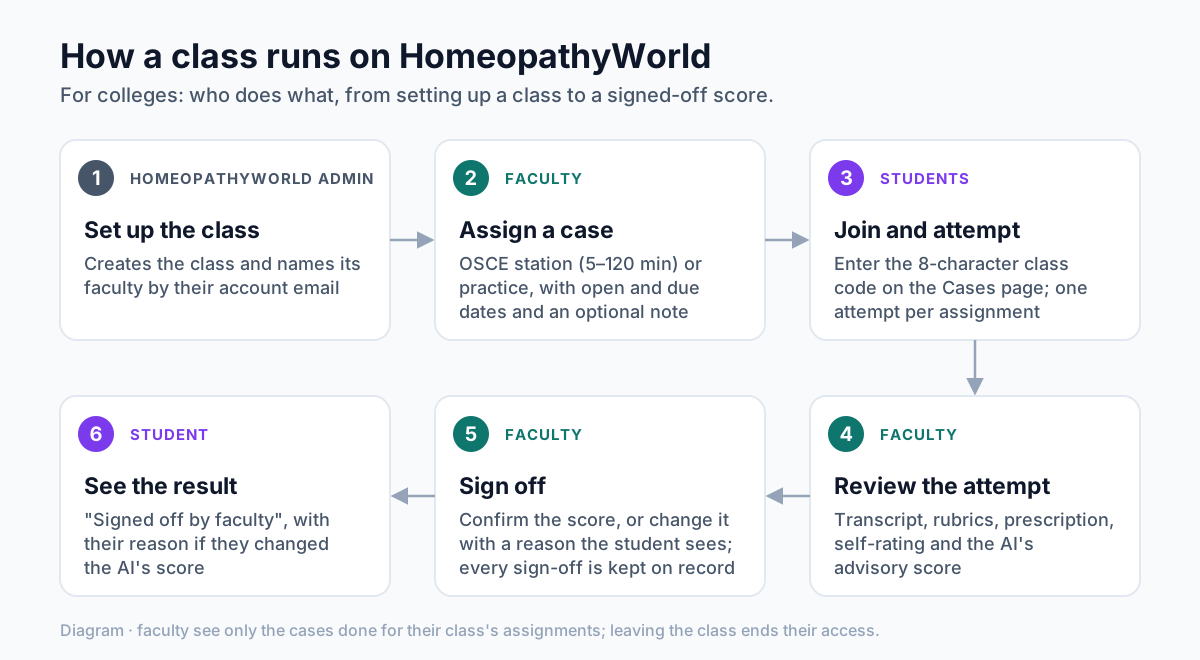
Diagram: who does what in a class, from set-up to a signed-off score.
Step 1: How a class is set up
The admin creates the class with a Class name (for example, "BHMS 3rd year, batch A") and a College, and the class is given an eight-character code. The admin then adds each teacher with Add faculty, using two fields: Faculty account email and Name shown on sign-offs. That name appears on every score you sign off, and your students see it.
Once you have been named, a Classes button appears at the top of your Cases page. It opens the list of classes you teach. Each one shows its Code, the number of Students and Assignments, and its faculty.
Step 2: Share the join code
Open the class. The Class code is at the top right. Codes use letters and numbers but never 0, O, 1 or I, so you can read one aloud without confusion.
Your students then:
- Open the Cases page and find the Your classes panel.
- Type the code under Join a class and click Join. Spaces and hyphens are ignored.
- See the class appear as a chip with your name and a Leave button.
Before they join, the text under the join box tells students what their faculty will see (see the last section). A wrong code shows "No class uses that code. Check it with your teacher."
Step 3: Assign a case
On the class page, fill in the Assign a case form:
- Case: a library case, labelled acute or chronic.
- Mode: OSCE station or Practice.
- Time limit (minutes): for a station only. The default is 20, and you can choose anything from 5 to 120.
- Opens and Due: a date and time for each. The due date must come after the opening date and must not already have passed. It can be at most 180 days after opening.
- Note to students (optional): for example, "Take the generals before the particulars."
- Click Assign.
| OSCE station | Practice | |
|---|---|---|
| Attempts | One | One |
| Clock | Timed by the server | Untimed |
| Learning aids | None: no hints, no remedy ranking | Available |
| Scoring | Against the answer key; you sign off each score | Practice score; you can still sign off or change it |
A station cannot be assigned on a case that has no answer key yet. The form tells you: "This case has no answer key yet, so it cannot be an exam station. Pick another case, or practise it in learning mode."
Each assignment has two controls. Move due date gives the batch more time. Cancel… asks you to confirm with Cancel the assignment or Keep it. Attempts already made are kept.
Step 4: What your students see
In Your classes, each assignment shows:
- the case and the class
- "OSCE station · 20 min" or "Practice"
- the opening or due time
- your note
- the student's status
When the assignment is open, the student clicks Start. For a station they first see a warning. It says there is one attempt, and the clock starts when they press start and cannot be paused. There are no hints and no remedy ranking, and faculty sign off the score. They then choose Start the 20-minute clock or Not yet.
Tell your batch these rules:
- One attempt per assignment. A second try is refused with "You have already started this assignment."
- An assignment cannot be started before it opens or after it is due.
- Assignments do not use up a student's daily limit of new cases.
- The case runs in the student's default case language, set in Settings → AI & Voice. Ask them to check it before they start.
- After a station, students see only Submitted, with no number and no feedback until you sign off. After a practice assignment, they see their Practice score straight away.
Step 5: Follow the class dashboard
The class page is your dashboard.
- At the top: the number of Students, and Station scores signed off, shown as "N of M submitted".
- Under Assignments: each case with its mode, its state (Open, Not open yet, Closed or Cancelled), and how many attempts are signed off. A table lists every student with Status, AI score (advisory), Final score and Minutes used.
- Under The class by checklist area: what the class drew out in each area of the case-taking checklist (Organon §§83–104), weakest first, with Points drawn out and Share. If the whole batch misses the same area, you know what to teach next.
- Under Students: everyone who has joined.
The status column uses these labels:
| Status | Meaning |
|---|---|
| Not started | No attempt yet |
| In progress | Started but not yet submitted |
| Time up, not submitted | Station time ran out; it is marked when the student next opens the case |
| Awaiting sign-off | Station submitted and waiting for you |
| Signed off | You have signed off the score |
| Completed | Practice assignment finished |
| Discarded | The student discarded the case |
Step 6: Review one student's attempt
Click Review and sign off next to a submitted station, or Review for any other attempt. The review page shows:
- AI score (advisory), Final score (or "Not signed off"), and Process. Process counts how often the student asked the patient to step out of the role and how many spoken questions they corrected.
- What the checklist found: every item of the answer key, marked drawn out or missed, with its Organon aphorism and the question where it came up. It also lists the rubrics matched and missed, and whether the remedy is in the acceptable set. If the answer key is still an unsigned draft, it says so.
- Rubrics and prescription.
- The student's own rating: case-taking, rubrics and remedy confidence out of 5, with any note.
- Transcript: every question numbered, with spoken lines marked. Where the student corrected the microphone, it shows what the microphone originally heard.
Step 7: Sign off or change the score
Under Sign off this score, choose one of two options:
- Confirm the AI's advisory score. You can add a Note (optional). Then click Sign off.
- Give a different score, with the reason. Enter a Score (0–100) and a Reason (the student sees it) of at least 10 characters. Then click Sign off with this score.
The student gets a notification that their case was signed off. Their score card changes to Signed off by faculty and shows the AI's feedback alongside your score, with your reason if you changed it.
You can change a decision later under Change the sign-off. Nothing is overwritten. Every decision is added to the Sign-off record with your name and the time, and the latest one stands. An admin can view a class but cannot sign off its scores.
What faculty can and cannot see
Students are told this before they join.
- You can see the cases a student does for your class's assignments. That means the conversation (including what the microphone heard and any correction), their rubrics, prescription, self-rating and scores.
- You cannot see any other case the student does on HomeopathyWorld.
- Leaving ends access. If a student leaves the class, you can no longer open their attempts.
Tips for teachers
- Start with a practice assignment so that students learn the interface before a timed station.
- Match the time to the case. Twenty minutes suits most acute cases. Give chronic cases longer.
- Write reasons that teach. Students read your reason, so "Missed the thermals and the sleep position" helps more than "Incomplete".
- Your judgement is final. The AI score is a starting point, and the answer keys are still being reviewed.
Try it now
Once you have been named as faculty, open the case simulator and click Classes, or go straight to your classes. Set one practice case due next week, then share the class code with your batch.
Next in this series
Dr. Harish Kumar
Homeopath and founder of HomeopathyWorld. Writes on materia medica, case-taking, repertory and the Organon for students and practitioners.
Put this into practice
Repertorise these symptoms against the real Kent & Bönninghausen, read the full Materia Medica, and practise the case on an AI patient — free account, no card required.
Create your free accountMore in Tutorials
Discussion
Sign in to join the discussion.
No comments yet — start the conversation.