
Tutorials
Exam mode, OSCE stations and your BHMS case journal
By Dr. Harish Kumar · September 12, 2026 · 9 min read
Practise under exam conditions with a timed OSCE station, then gather 10 acute and 10 chronic completed cases into a printable BHMS case journal.
Learning mode is generous. It gives you symptom hints, suggested questions and a remedy ranking while you work. An examiner gives you none of that. Exam mode in the case simulator is there so you can practise the way you will be assessed: one patient, a running clock, no prompts, and a score you did not see coming.
This guide covers two things that belong together. The first is exam mode, which runs as an OSCE station. The second is the case journal, which turns your completed cases into the 10 acute and 10 chronic case takings your BHMS course asks you to keep.
Before you start
- A library case is needed. A station is scored against the case's answer key, so it only runs on a case from the library.
- It counts as a new case. On the free plan you can start 3 new cases a day, and a station you start yourself is one of them. Stations your teacher assigns through a class do not count towards that limit.
- Give yourself the full time. A self-started station lasts 20 minutes, and the clock starts the moment you pick the case.
- Answer keys are still being reviewed. Homeopath reviewers are still signing off the answer keys. Treat every score as a learning aid, not an official grade.
Part 1: Exam mode as an OSCE station
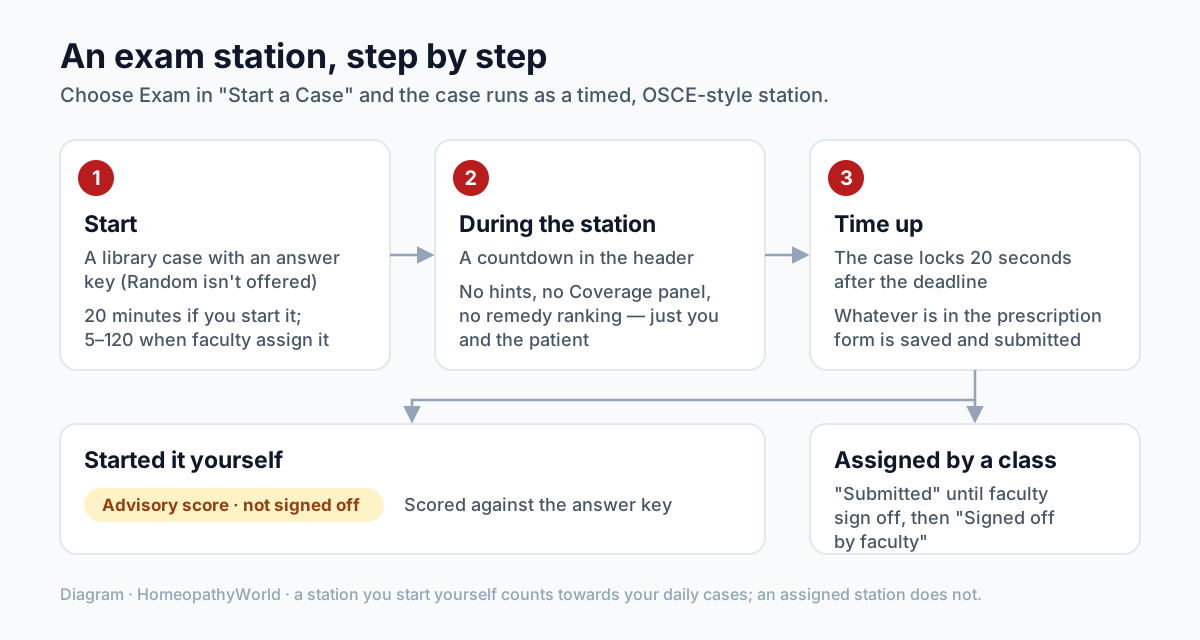
Diagram: an exam station from start to result. The steps below go through each stage.
Step 1: Start the station
- Open the Cases page and click New Case.
- In the Start a Case dialog, under Mode, choose Exam. The line underneath changes to describe the station: 20 minutes timed by the server, no hints, no remedy ranking, and a score that stays advisory until a faculty member signs it off.
- Under Language, choose the language of the case. Only English cases get a number for now. Cases in other languages get feedback without one (more on this below).
- Under Choose a Scenario, pick a library case. Random / Free Case is not offered in Exam mode, because a random case has no answer key to mark you against.
If you pick a case that has no answer key yet, the dialog tells you: "This case has no answer key yet, so it cannot be an exam station. Pick another case, or practise it in learning mode."
Step 2: Read the prebrief
The first thing in the chat is a Before you begin card. At a station it tells you how many minutes you have for the history, the rubrics and the prescription. It also warns that asking the patient to step out of the role, or to name a remedy, counts as a process error. Read it, then click Got it.
Step 3: Know what is different
| Learning mode | Exam station | |
|---|---|---|
| Symptom hints and suggested questions | Shown | Not shown |
| Coverage meter | Shown | Not shown |
| Remedies tab and Repertorize | Available | Hidden |
| Clock | None | Counts down in the case header |
| Scoring | Practice score | Scored against the answer key, advisory |
The Rubrics and Case Sheet tabs are still there, so you can search the repertory and build your totality as usual. What you cannot do is ask the software which remedy the rubrics point to. That part is up to you.
Step 4: Work against the clock
The case header shows the minutes and seconds left. The deadline is kept on the server, not in your browser. Refreshing the page or switching tabs does not stop the clock or give you extra time.
Plan your 20 minutes the way you would plan a viva station:
- Let the patient tell the story first, then fill the gaps: modalities, generals, mind, sleep, thermals.
- Add rubrics in the Rubrics tab as you go, not at the end.
- Leave a few minutes to prescribe. The Prescribe button stays greyed out until you have selected at least one rubric.
Tip: if you are running short, open Prescribe and type in your remedy and potency, even if you have not submitted it. Whatever is in the prescription form when the clock runs out is saved and marked.
Step 5: What happens when time is up
When the countdown reaches zero, the header shows Time up. This message appears in the chat: "Time is up at this station. What you had saved when the clock ran out is what will be marked." The message box is switched off and the Prescribe button disappears.
After that:
- The server accepts a request that was already on its way for a few more seconds. After that the case locks, and no new questions, rubrics or prescription are accepted.
- Your case is submitted automatically. If you used the microphone, you are first asked to check what it heard. Then you rate your own work, and then it is scored.
- If you had not saved a prescription, the station is still scored on what you did save. In your list of cases it shows as Completed without a prescription.
- If you close the page before the clock runs out, the case is submitted the next time you open it.
Step 6: Read your result
What you see next depends on how the station was started.
- A station you started yourself. The score card is labelled Advisory score · not signed off. The score is worked out by comparing your case against the answer key. It is advisory because no faculty member has checked it. Use it to see where you lost points, not as a mark.
- A station your teacher assigned. The card simply reads Submitted, with the note that your faculty will read the transcript and sign off your score. You see no number and no feedback until they have. When they sign off, you get a notification saying "Your case was signed off", and the card changes to Signed off by faculty.
- A case in a language other than English. Scoring in that language has not been checked yet, so the card reads Feedback · unscored. You get feedback but no number.
For an assigned station, your teacher sets the time limit anywhere from 5 to 120 minutes. You get one attempt. You start it from the Your classes panel on the Cases page by pressing Start and then the button that starts the clock.
Part 2: The BHMS case journal
The BHMS curriculum asks for a journal of 10 acute and 10 chronic case takings. The case journal builds one from your completed simulator cases. Each case is set out with the case taking as it happened, your rubrics and prescription, the result, and a line for your faculty's signature.
Step 1: Open the journal
On the Cases page, click Case journal at the top, or go straight to your case journal.
Your completed library cases are listed under two headings: Acute case takings and Chronic case takings. A case goes under acute when its library card says acute. Every other case counts as a chronic case taking. Older improvised random cases do not have a library card, so they cannot be sorted and are left out. The page tells you how many were left out.
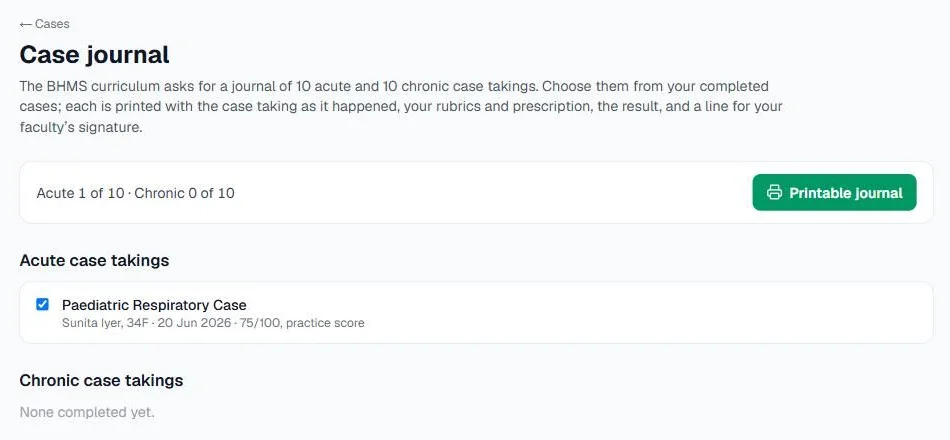
Screenshot from our own account, 13 September 2026. With one acute case completed so far, the counter reads Acute 1 of 10 · Chronic 0 of 10.
Step 2: Choose your cases
- Tick up to 10 acute and up to 10 chronic cases. Your most recent ones are ticked for you to begin with.
- Watch the counter at the top. It reads, for example, "Acute 7 of 10 · Chronic 10 of 10".
- Once you have ticked 10 of a kind, the rest of that list is greyed out. Untick one to make room for another.
Each row shows the case name, the patient, the date and the result, so you can pick your best-documented cases.
Step 3: Print or save as PDF
- Click Printable journal. It opens a plain document page built from the cases you ticked.
- Click Print or save as PDF. Your browser's print dialog opens. Print it, or choose to save it as a PDF.
- Use ← Choose cases to go back and change your selection.
When printed, each case starts on a new page. The journal header shows your name and the College / Institution from your profile, so fill that in under Settings → Profile first. Each record contains:
- Date, Patient and Presenting complaint
- Case taking, line by line, marked Physician and Patient
- Repertorial totality, the rubrics you selected
- Prescription
- Result
- Two signature lines: one for the student and one for the faculty
How the result is written
| What happened | How the journal reads |
|---|---|
| An ordinary case | The score, marked as a practice score |
| A station not yet signed off | The score, marked advisory (not signed off by faculty) |
| An assigned station awaiting your teacher | Submitted; awaiting faculty sign-off |
| A case in a language not yet checked for scoring | Feedback only |
| A station your faculty signed off | The score, signed off by the named faculty member |
The journal is honest about what each number is, so your teacher can see at a glance which scores have been checked.
Common mistakes
- Clicking a case before you are ready. The station clock starts as soon as the case opens.
- Leaving rubrics to the end. Without at least one rubric you cannot prescribe.
- Asking the patient what remedy they took, or asking them to step out of the role. At a station this is counted as a process error.
- Treating the advisory score as a mark. It is a learning aid. Only a faculty sign-off turns a station score into an assessed one.
- Filling the journal with unscored cases when you need numbers. If your teacher expects scores, choose English cases for the journal.
Try it now
Open the case simulator, choose New Case, switch Mode to Exam, and give yourself one uninterrupted 20-minute station. Once you have a few completed cases, open your case journal and print a draft.
Next in this series
Dr. Harish Kumar
Homeopath and founder of HomeopathyWorld. Writes on materia medica, case-taking, repertory and the Organon for students and practitioners.
Put this into practice
Repertorise these symptoms against the real Kent & Bönninghausen, read the full Materia Medica, and practise the case on an AI patient — free account, no card required.
Create your free accountMore in Tutorials
Discussion
Sign in to join the discussion.
No comments yet — start the conversation.